# Gmail Configuration

**SMTP Gmail Configuration**

**Obtaining a Password**

To create an app password, you need 2-Step Verification on your Google Account.

1. Open a web browser.
2. Go to [https://www.google.com/account/about/.](https://www.mamp.info/en/mamp/)
3. Sign in to your Google Account if you're not already signed in.
4. Go to your [Google Account](https://myaccount.google.com/) after Sign in

<figure><img src="https://74030740-files.gitbook.io/~/files/v0/b/gitbook-x-prod.appspot.com/o/spaces%2F6o4UzjBZtMQpeq4oeh8s%2Fuploads%2Ffmajdsir4s0CqLjio0FV%2Fimage.png?alt=media&#x26;token=7b1202ef-998a-4532-885c-a89d6c73b77c" alt=""><figcaption></figcaption></figure>

5. Select Security

<figure><img src="https://74030740-files.gitbook.io/~/files/v0/b/gitbook-x-prod.appspot.com/o/spaces%2F6o4UzjBZtMQpeq4oeh8s%2Fuploads%2Fm5HzvjoVdpvLszifbN3Y%2Fimage.png?alt=media&#x26;token=7c08afa5-beff-4520-8ec7-20a1f712a306" alt=""><figcaption></figcaption></figure>

6. Click on 2-Step Verification

<figure><img src="https://74030740-files.gitbook.io/~/files/v0/b/gitbook-x-prod.appspot.com/o/spaces%2F6o4UzjBZtMQpeq4oeh8s%2Fuploads%2F2M5AVpDVXoxIK34QVyWu%2Fimage.png?alt=media&#x26;token=ea819eeb-fa30-4bea-b8e0-5b3b384617f2" alt=""><figcaption></figcaption></figure>

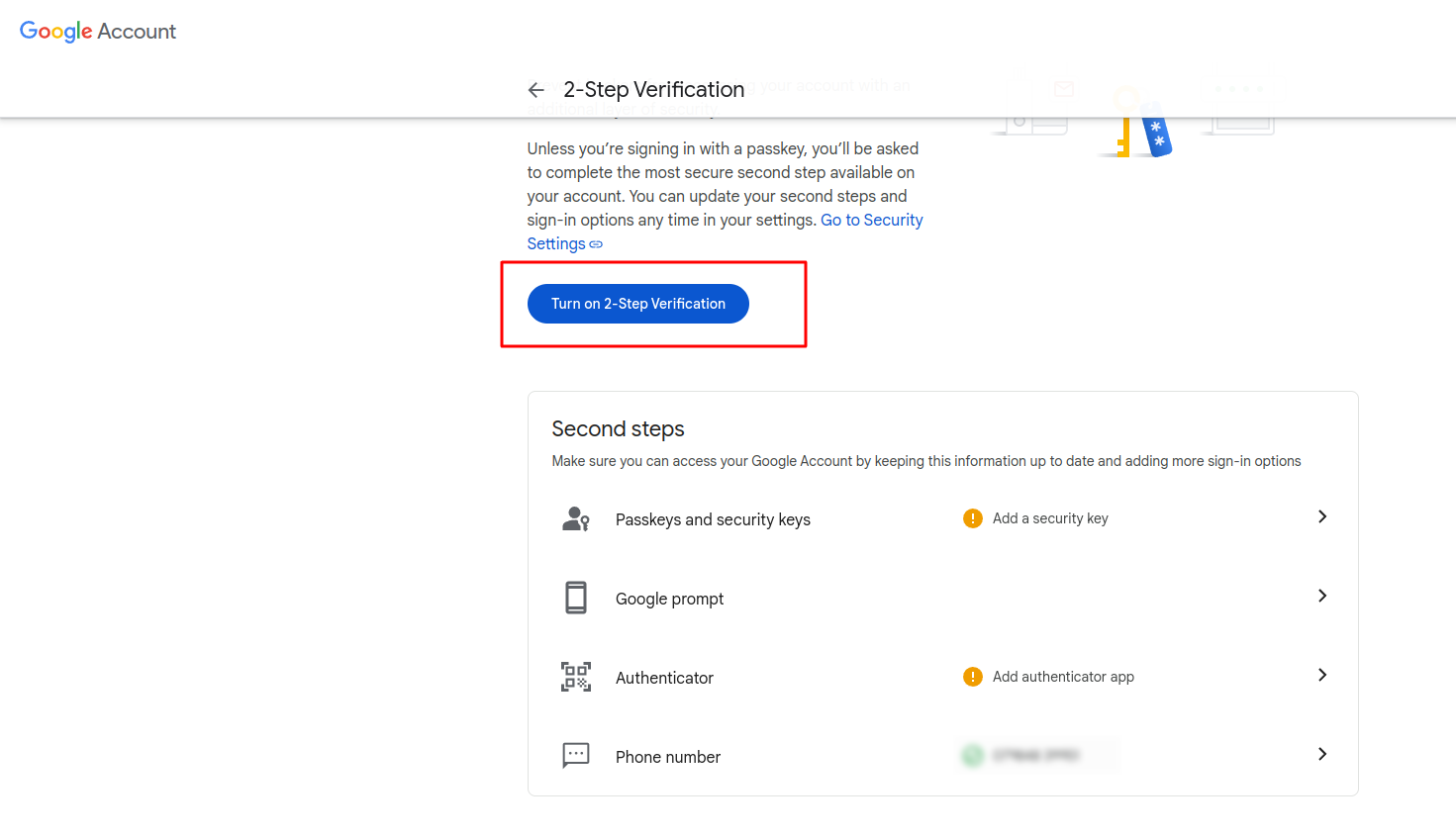
7. Click Turn on 2-Step Verification and verify account by option given

<figure><img src="https://docs.pixelstrap.net/laravel/taxido/assets/images/laravelApi/ticket/setting-management/23.png" alt=""><figcaption></figcaption></figure>

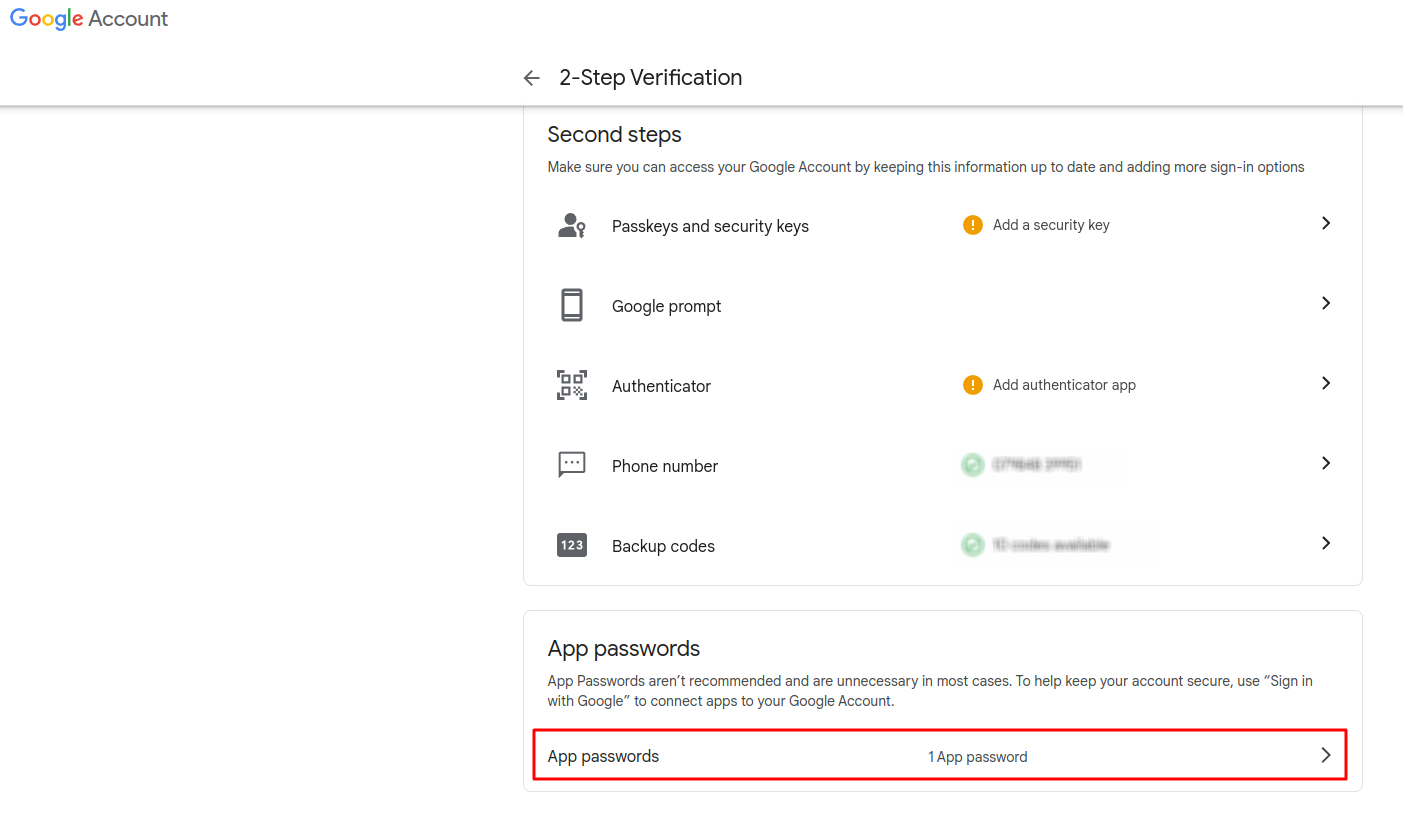
8. Click on App Password

* &#x20;Use the search bar to find your app password if you can't find it.

<figure><img src="https://74030740-files.gitbook.io/~/files/v0/b/gitbook-x-prod.appspot.com/o/spaces%2F6o4UzjBZtMQpeq4oeh8s%2Fuploads%2FCU1taswp16TrbVSSJHU0%2Fimage.png?alt=media&#x26;token=5cd4d93e-2dde-4f30-be1a-5cea057b99b0" alt=""><figcaption></figcaption></figure>

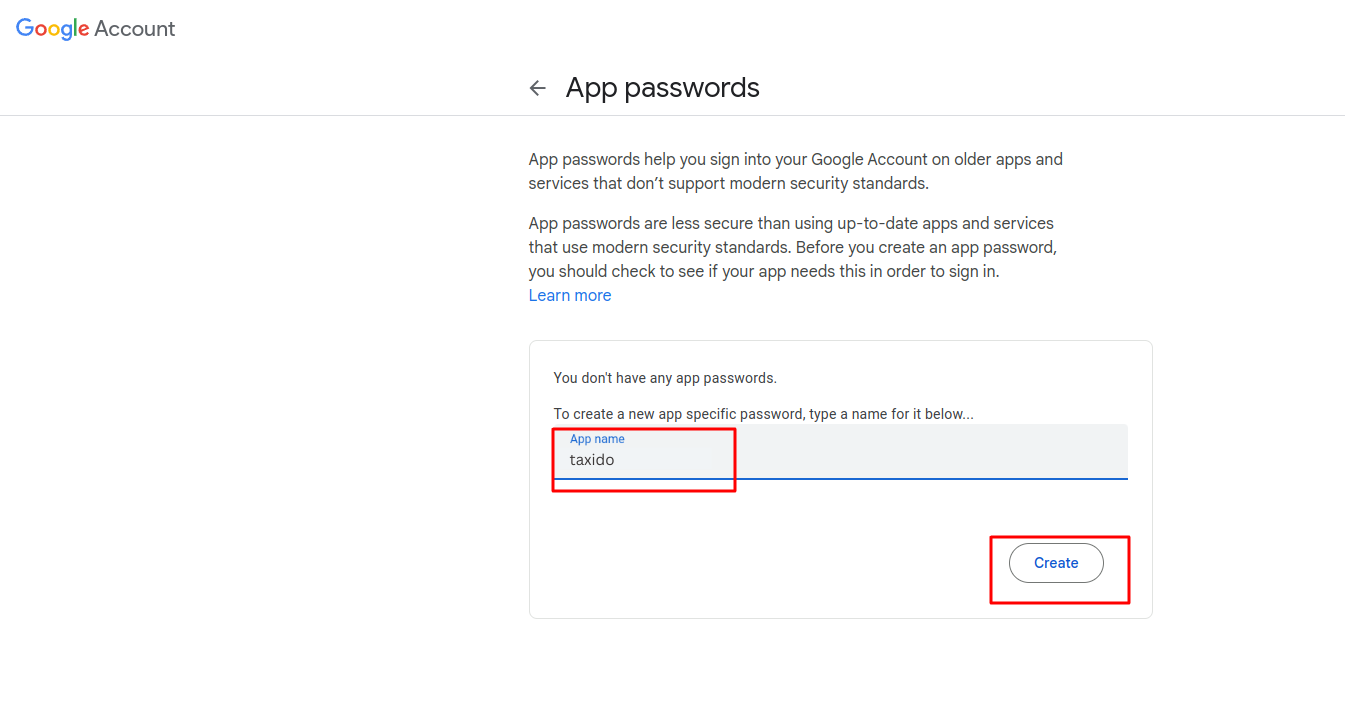
9. Enter your app name and click on create button

<figure><img src="https://docs.pixelstrap.net/laravel/taxido/assets/images/laravelApi/ticket/setting-management/25.png" alt=""><figcaption></figcaption></figure>

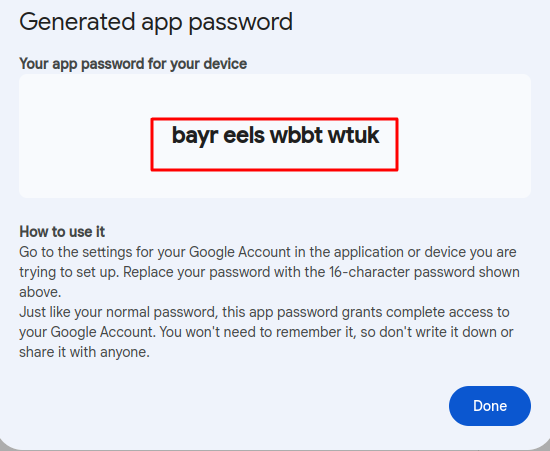
10. Enter your app password in to password field

<figure><img src="https://docs.pixelstrap.net/laravel/taxido/assets/images/laravelApi/ticket/setting-management/26.png" alt=""><figcaption></figcaption></figure>

In the Mailer Tab, you can select any of the 2 options:

1. Sendmail
2. SMTP

Please review the document and complete the mail configuration form.

<https://docs.cpanel.net/knowledge-base/email/how-to-create-and-connect-to-an-email-account/>

<figure><img src="https://74030740-files.gitbook.io/~/files/v0/b/gitbook-x-prod.appspot.com/o/spaces%2F6o4UzjBZtMQpeq4oeh8s%2Fuploads%2F43aCchvK9WW6s2luNKZ8%2Fimage.png?alt=media&#x26;token=c649249a-971f-4db3-92aa-5a8ec048622d" alt=""><figcaption></figcaption></figure>

**Test Mail**

Please ensure all necessary information is provided to ensure successful delivery of the test email. Fill in all required fields accurately to avoid any errors.

To receive the email, simply press the 'Send Test Mail' button.

<figure><img src="https://74030740-files.gitbook.io/~/files/v0/b/gitbook-x-prod.appspot.com/o/spaces%2F6o4UzjBZtMQpeq4oeh8s%2Fuploads%2Fvdz2WrZriUBsbOWrqZSs%2Fimage.png?alt=media&#x26;token=c7ec647e-21eb-4562-b6b1-de57496f20c1" alt=""><figcaption></figcaption></figure>