# Categories
### **Add Categories**
#### **How to add the Category ?**
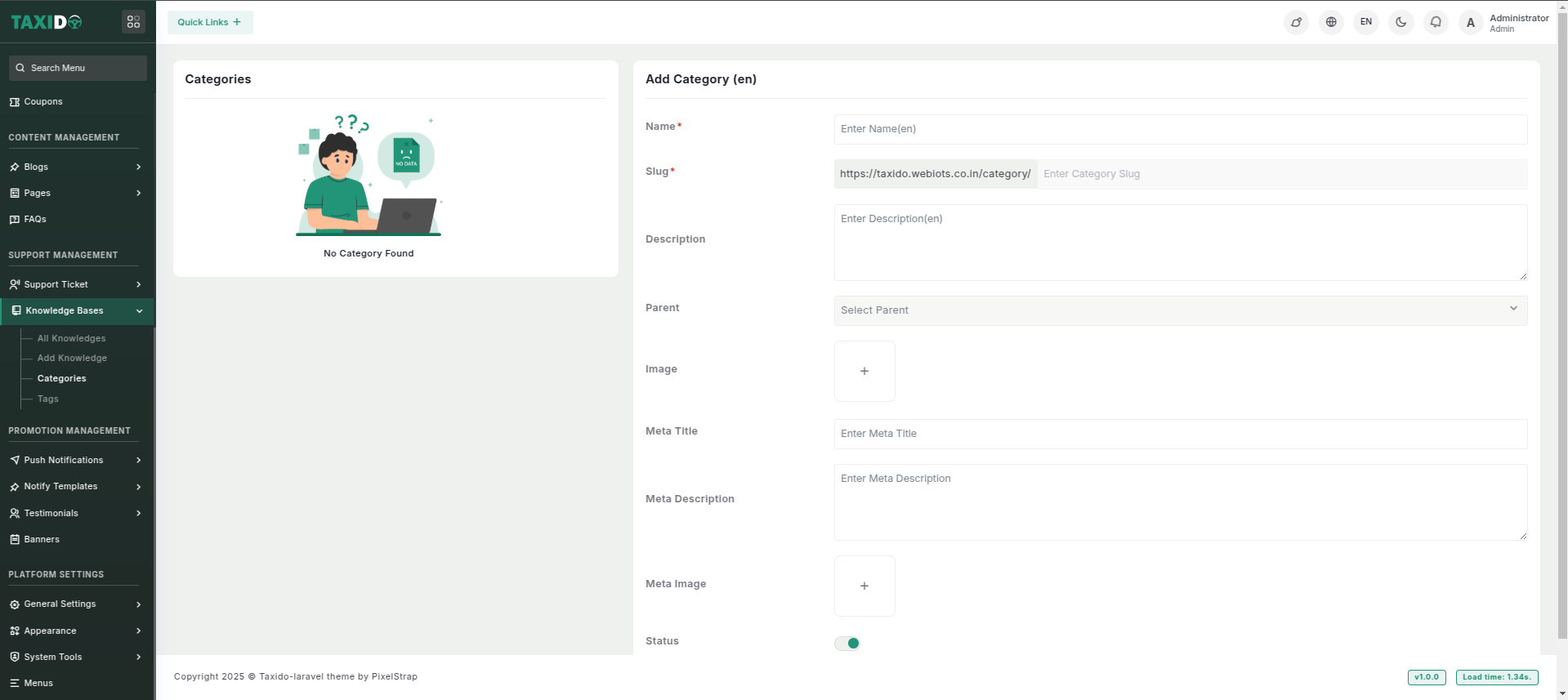
1. Navigate to the "Support Management" section => Knowledge Bases.
2. Click on the "Categories" and fill out the details, which may include:
* **Name:** Enter the name of the category.
* **Description:** Here, you can provide a description of your category.
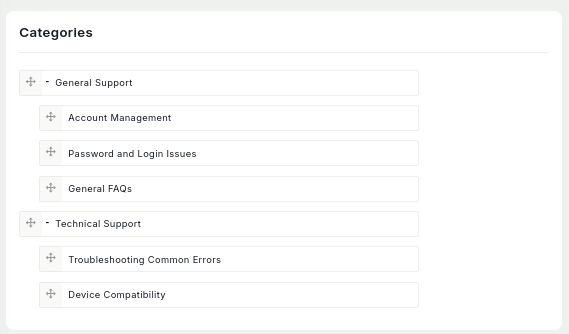
* **Parent:** Here, you can choose the parent of the category.
* **Image:** Upload an image representing the category. This image will be used in the system to visually identify the category.
* **Meta Title:** Sets the meta title for the page, which appears as the title in search engine results, helping with SEO and user engagement.
* **Meta Description:** Defines the meta description for the page, which is shown in search engine results and can influence click-through rates.
* **Meta Image:** Defines the meta image for the page, which is shown in search engine results and can influence click-through rates.
* **Status:** Set the status to either "Active" or "Inactive." If the status is "Active," this department is available storing ticket department wise. If "Inactive," it will not be available for use.
**How to edit the Category ?**
1. Go to the Categories.
2. Find the category you want to edit and click the Edit button from the Action Column.
3. Make your changes and click on the "Save" button.