# Firebase Billing

![](https://docs.pixelstrap.net/laravel/taxido/assets/images/icons/firebase.png)**Firebase Billing :**

{% hint style="danger" %} <mark style="color:red;">**Note :**</mark> <mark style="color:red;">Our app requires a billing account to function. Please ensure you set appropriate daily or usage limits on your billing account for safety.</mark>\ <mark style="color:red;">If the API key is overused, misused, or exposed, and this results in high charges, we will not be responsible for any billing costs. Managing limits and securing keys is the user’s responsibility.</mark>
{% endhint %}

{% hint style="warning" %} <i class="fa-bullhorn">:bullhorn:</i> NOTE :\
Before launching the app, ensure you have correctly set up the ADMIN LARAVEL and have added all necessary data through the admin panel.\
Before running the app make sure you have import Collection json in Firestore database which we have provided.
{% endhint %}

1. Go to <https://console.firebase.google.com/>
2. Now go to your project
3. On left hand side panel click go to bottom in that click on Upgrade

<div align="left"><figure><img src="https://74030740-files.gitbook.io/~/files/v0/b/gitbook-x-prod.appspot.com/o/spaces%2F6o4UzjBZtMQpeq4oeh8s%2Fuploads%2F9fypYtwr3vdXZYvagIEU%2Fimage.png?alt=media&#x26;token=139c5d1f-d2f1-46be-9e9e-33244c85addc" alt=""><figcaption></figcaption></figure></div>

4. In that select plan Blaze just click on Select plan

<div align="left"><figure><img src="https://74030740-files.gitbook.io/~/files/v0/b/gitbook-x-prod.appspot.com/o/spaces%2F6o4UzjBZtMQpeq4oeh8s%2Fuploads%2F30RX5AHrB28tK9LJVmcU%2Fimage.png?alt=media&#x26;token=377afcac-329a-4b84-aae2-1f03391e7c6a" alt=""><figcaption></figcaption></figure></div>

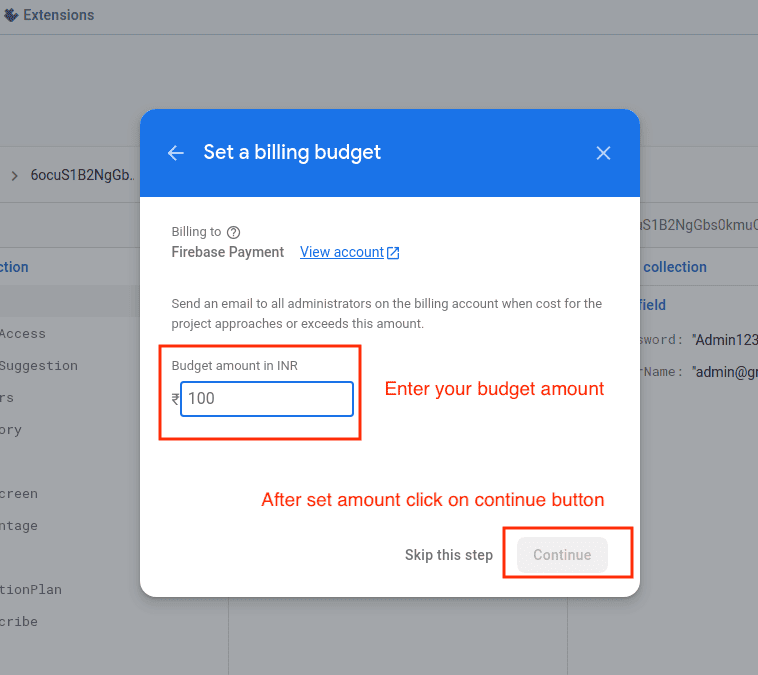
5. Enter you budget amount and click on Continue button

<div align="left"><figure><img src="https://docs.pixelstrap.net/laravel/taxido/assets/app/screenshot/billing4.png" alt=""><figcaption></figcaption></figure></div>

6. Now click on Purchase button

<div align="left"><figure><img src="https://74030740-files.gitbook.io/~/files/v0/b/gitbook-x-prod.appspot.com/o/spaces%2F6o4UzjBZtMQpeq4oeh8s%2Fuploads%2FWlUJ6HMvkI1J3odpHJVy%2Fimage.png?alt=media&#x26;token=c16f8674-c58a-454c-b95f-21c6fc0fb1a1" alt=""><figcaption></figcaption></figure></div>

7. You have Upgrade plan successfully

<div align="left"><figure><img src="https://74030740-files.gitbook.io/~/files/v0/b/gitbook-x-prod.appspot.com/o/spaces%2F6o4UzjBZtMQpeq4oeh8s%2Fuploads%2F3DP4Bb82pbl0BGpFZa4w%2Fimage.png?alt=media&#x26;token=a69cd5dc-1c92-4e3a-a61a-e742131e4350" alt=""><figcaption></figcaption></figure></div>

8. Now go to Google Cloud console and select your project under that click on Billing section

<figure><img src="https://74030740-files.gitbook.io/~/files/v0/b/gitbook-x-prod.appspot.com/o/spaces%2F6o4UzjBZtMQpeq4oeh8s%2Fuploads%2FyVCFICUxh3KLE0IYM6RR%2Fimage.png?alt=media&#x26;token=0163acc8-6e8d-4088-8828-612358f59685" alt=""><figcaption></figcaption></figure>

9. Now click on LINK A BILLING ACCOUNT

<figure><img src="https://74030740-files.gitbook.io/~/files/v0/b/gitbook-x-prod.appspot.com/o/spaces%2F6o4UzjBZtMQpeq4oeh8s%2Fuploads%2F6Q52zPJ6B6KGuDw9DTrQ%2Fimage.png?alt=media&#x26;token=f7d6ecbb-dcb6-4671-8c8d-377fa4e176e8" alt=""><figcaption></figcaption></figure>

10. One pop-up will open in that select option Firebase Payment and click on Set Account

<figure><img src="https://74030740-files.gitbook.io/~/files/v0/b/gitbook-x-prod.appspot.com/o/spaces%2F6o4UzjBZtMQpeq4oeh8s%2Fuploads%2FeABl4MHJRe2Z0N9UKgbs%2Fimage.png?alt=media&#x26;token=4de5c197-5759-41a6-a362-dad4d2861be0" alt=""><figcaption></figcaption></figure>

11. Now set up your billing account in Payment Method in Google Play Console

{% hint style="warning" %}
Now go to the Firebase Billing: [Firebase Collections](https://docs.pixelstrap.net/laravel/taxido/firebase_collections.html).
{% endhint %}