# Connect With Admin
## **Connect With Admin :**
{% hint style="danger" %} **Note :** Our app requires a billing account to function. Please ensure you set appropriate daily or usage limits on your billing account for safety.\ If the API key is overused, misused, or exposed, and this results in high charges, we will not be responsible for any billing costs. Managing limits and securing keys is the user’s responsibility.
{% endhint %}
{% hint style="warning" %} :bullhorn: NOTE :Before launching the app, ensure you have correctly set up the ADMIN LARAVEL and have added all necessary data through the admin panel.
{% endhint %}
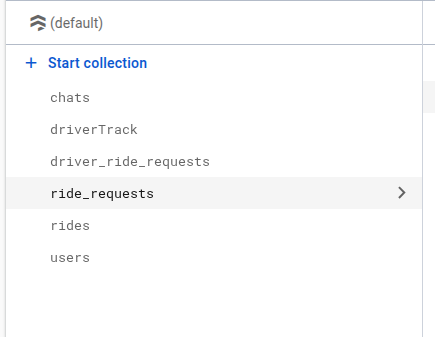
As you have know there are multiple collection has been used in firebase. Let's see what is the use of the collection and how it added
**There are 5 collections created in the firebase**
1. chats - \[Auto generate]
2. driverTrack - \[Auto generate]
3. driver\_ride\_requests - \[Auto generate]
4. ride\_requests - \[Auto generate]
5. rides - \[Auto generate]
6. users - \[Auto generate]\
{% hint style="warning" %} :bullhorn: NOTE :\
In above collection list \[Auto generate] means this collections are generate in firebase whenever any first user enter any data
{% endhint %}
1. Now go to Service accounts\
\
To get the `firebase.json` file, just follow the steps below.
2. Go to [Firebase Console](https://console.firebase.google.com/)
3. Now go to your Firebase project, On left hand side panel click on setting icon. On click Setting button pop open. In that click on Project Settings\
\
\

4. Now go to Service accounts
5. Now click on button Generate new private key
6. After click on button on pop-up appear int that click on Generate key
Once uploaded, the file will be saved to: `public/admin/assets/firebase.json`. The system will use this file for Firebase Admin SDK integration.
### **Connect Admin with Firebase**
#### Firebase Console → Project Settings → General → Web API Key
* **Firebase API Key:** Used to identify your Firebase project when using client-side SDKs.\
\&#xNAN;*Find it in:* Firebase Console → Project Settings → General → Web API Key
* **Firebase Auth Domain:** Domain used for Firebase Authentication (usually ends with `.firebaseapp.com`).\
\&#xNAN;*Find it in:* Firebase config JSON → `authDomain`
* **Firebase Database URL:** URL to access your Firebase Realtime Database.\
\&#xNAN;*Find it in:* Firebase Console → Realtime Database → Database URL
* **Firebase Storage Bucket:** Used to store user files like images or documents.\
\&#xNAN;*Find it in:* Firebase config JSON → `storageBucket`
* **Firebase Messaging Sender ID:** Unique ID used for Firebase Cloud Messaging (push notifications).\
\&#xNAN;*Find it in:* Firebase config JSON → `messagingSenderId`
* **Firebase App ID:** Unique identifier for your application registered with Firebase.\
\&#xNAN;*Find it in:* Firebase config JSON → `appId`
* **Firebase Measurement ID:** Used for integrating with Google Analytics (optional).\
\&#xNAN;*Find it in:* Firebase config JSON → `measurementId`\
\
\
\
\
{% hint style="info" %} These details are stored in the `firebase.json` file, which is saved at **public/admin/assets/firebase.json**. Any additional Firebase-related keys or configuration added from the admin panel are stored in the `.env` file.
{% endhint %}
### **Firebase SMS Authentication**
**Firebase SMS Authentication:** Allows users to log in using their mobile number via Firebase's OTP (One-Time Password) authentication system.
**Login Flow:**
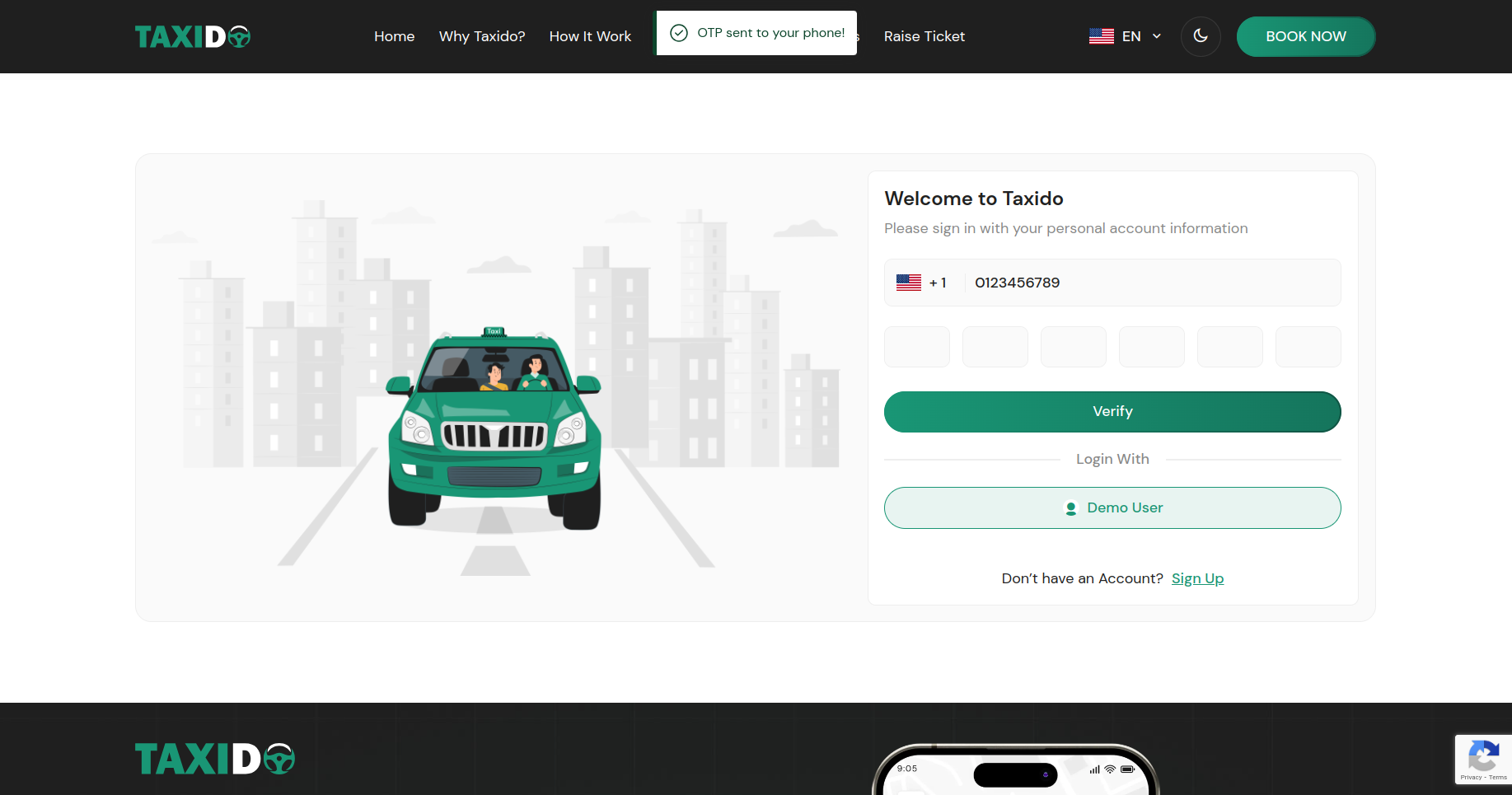
* User visits the login page and enters their mobile number.
* On clicking **"Send OTP"**, Firebase sends a verification code via SMS.
* The user enters the OTP in the input fields and clicks **"Verify"**.
* Upon successful verification:
* If the number already exists in Firebase, the user is logged in directly.
* **If the number is not registered:** the user is redirected to a manual registration form to fill in details like name, email, etc.
* The Firebase UID and access token are stored in your backend for future logins.
{% hint style="info" %} **Note:** This authentication method is secure and uses Firebase's built-in phone number verification with reCAPTCHA.
{% endhint %}
**Running Firebase Authentication Locally:**\
If you want to test Firebase SMS login locally, you must manually register your test phone number in your Firebase project. Follow the steps below:
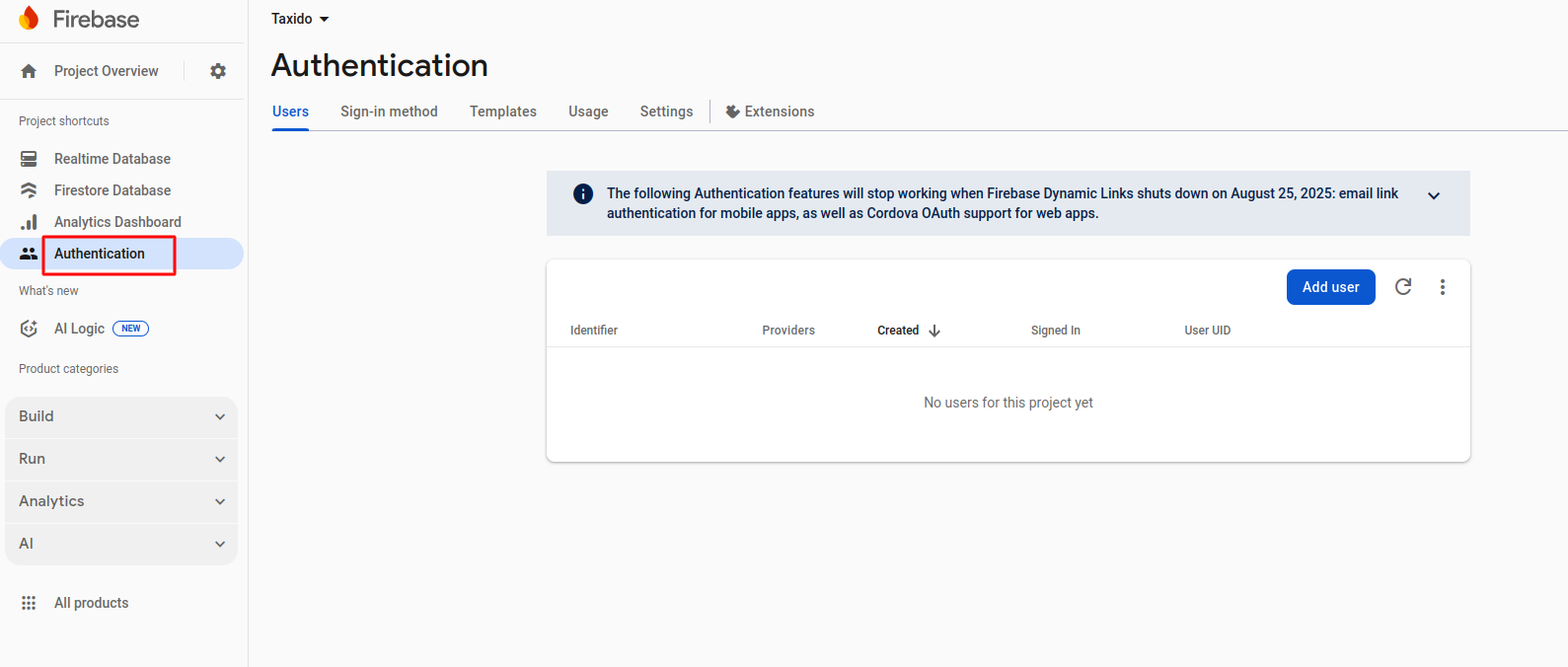
1. Go to the **Authentication** tab in your Firebase project.
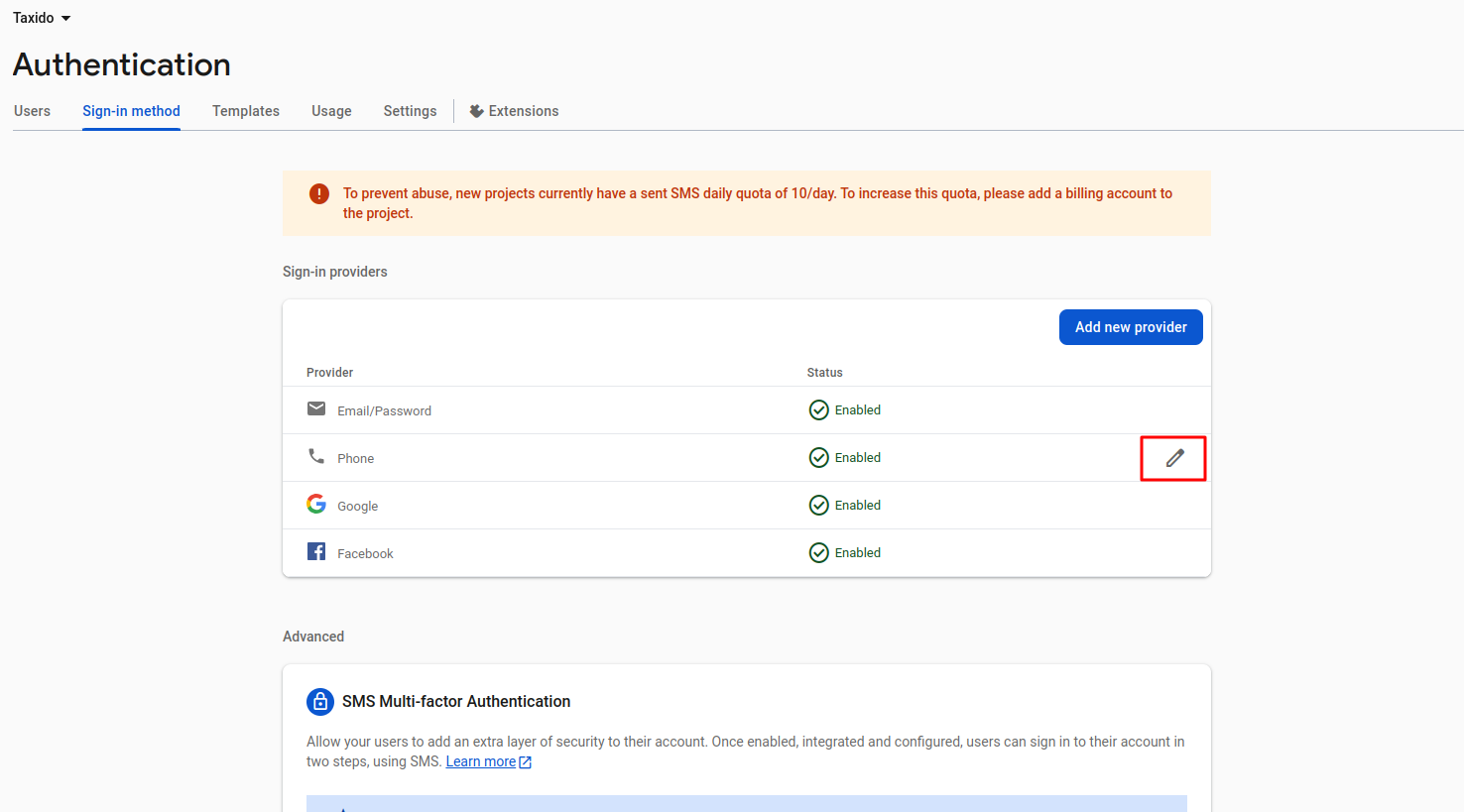
2. Click on the **Sign-in Method** section from the left sidebar.
3. Scroll down to the **Phone** provider and click the **Edit** icon (pencil button).
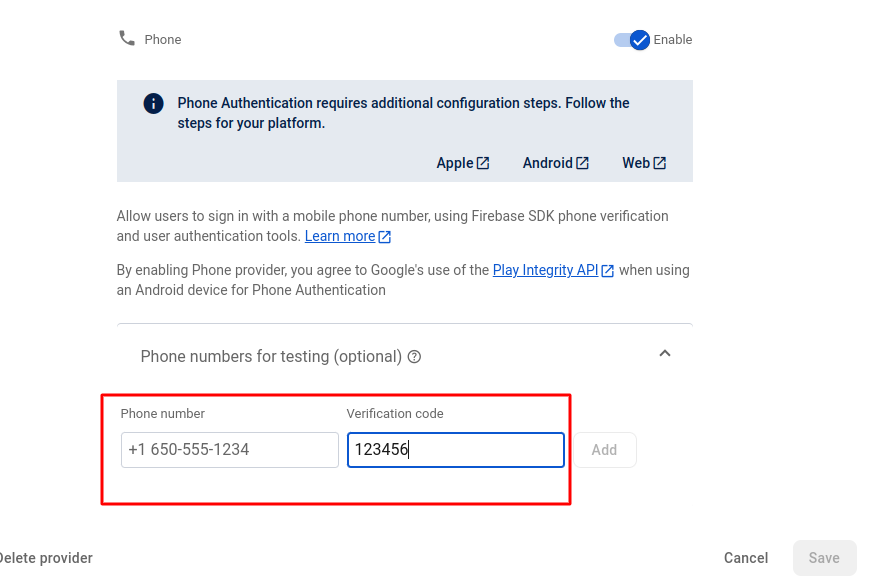
4. In the popup modal, register your test number by entering:
* **Phone Number** (e.g., +91XXXXXXXXXX)
* **Verification Code (OTP)** – any default code you'd like to use for local testing
5. Go to the **Authentication** tab in your Firebase project.
{% hint style="info" %} **Note:** These steps are only required for local development. On a live/production domain, Firebase will send actual OTPs to users automatically.
{% endhint %}
{% hint style="info" %} **Note:** This authentication method is secure and uses Firebase's built-in phone number verification with reCAPTCHA.
{% endhint %}
**Running Firebase Authentication Locally:**\
If you want to test Firebase SMS login locally, you must manually register your test phone number in your Firebase project. Follow the steps below:
**For Localhost assign test number and OTP**
1. Go to the **Authentication** tab in your Firebase project.
2. Click on the **Sign-in Method** section from the left sidebar.
3. Scroll down to the **Phone** provider and click the **Edit** icon (pencil button).
4. In the popup modal, register your test number by entering:
* **Phone Number** (e.g., +91XXXXXXXXXX)
* **Verification Code (OTP)** – any default code you'd like to use for local testing
5. Click **Save**. This number is now allowed to receive a default OTP during local development without needing real SMS delivery.
{% hint style="info" %} **Note:** These steps are only required for local development. On a live/production domain, Firebase will send actual OTPs to users automatically.
{% endhint %}
{% hint style="warning" %}
**Testing Note:** You can test this login/registration flow on the production domain, where SMS login and new user handling work automatically.\
\
For local testing, ensure the test phone number is manually registered in Firebase. On production, this registration happens automatically during login.
{% endhint %}
{% hint style="info" %} **Note:** These steps are only necessary for local development. For a live or production domain, you need to connect the domain to Firebase as outlined in the steps below.
{% endhint %}
**Running Firebase Authentication in Live Production Server:**\
These steps are intended for setting up Firebase Authentication using phone login on a live server in a production environment. Ensure you have administrative access to your Firebase project and the domain you intend to authorize. Misconfiguration may lead to authentication failures or security issues, so proceed with caution and double-check each step.
1. Go to the **Authentication** tab in your Firebase project.
2. Go to the Settings Tab
In the Authentication dashboard, click on the Settings tab at the top (next to "Users", "Sign-in method", etc.).
3. Locate the Authorized Domains Section
Scroll down to the Authorized domains section. This section lists domains that are allowed for OAuth redirects, which are required for phone authentication.
4. Add Your Domain
Click the Add domain button (as shown in the screenshot).
In the pop-up, enter your production domain (e.g., myapp.com)
{% hint style="warning" %}
**Important:** Do not include http\:// or https\://, and do not add a trailing slash. For example, use myapp.com, not .
{% endhint %}


 **Firebase SMS Authentication**
**Firebase SMS Authentication:** Allows users to log in using their mobile number via Firebase's OTP (One-Time Password) authentication system.
**Login Flow:**
* User visits the login page and enters their mobile number.
* On clicking **"Send OTP"**, Firebase sends a verification code via SMS.
* The user enters the OTP in the input fields and clicks **"Verify"**.
* Upon successful verification:
* If the number already exists in Firebase, the user is logged in directly.
* **If the number is not registered:** the user is redirected to a manual registration form to fill in details like name, email, etc.
* The Firebase UID and access token are stored in your backend for future logins.
**Firebase SMS Authentication**
**Firebase SMS Authentication:** Allows users to log in using their mobile number via Firebase's OTP (One-Time Password) authentication system.
**Login Flow:**
* User visits the login page and enters their mobile number.
* On clicking **"Send OTP"**, Firebase sends a verification code via SMS.
* The user enters the OTP in the input fields and clicks **"Verify"**.
* Upon successful verification:
* If the number already exists in Firebase, the user is logged in directly.
* **If the number is not registered:** the user is redirected to a manual registration form to fill in details like name, email, etc.
* The Firebase UID and access token are stored in your backend for future logins.