# Nginx Server (LEMP)
#### **Linux, Nginx, MySQL, PHP (LEMP stack)**
{% hint style="warning" %}
Note:
1. You can set up Taxido on different types of clean Ubuntu servers using VPS, including Digital Ocean Droplets, Amazon Lightsail, AWS, Google Cloud Virtual Private Server, Azure Ubuntu Virtual Private Server, and more.
2. If you plan to utilize all the scripts (Taxido\_laravel) on a single server as outlined in this tutorial, we suggest setting up a new Ubuntu-based server with a minimum of 2+ CPU cores and 2GB+ of memory for an efficient and smooth operation.
{% endhint %}
### **Setup Server**
**1. Login to your server:**
Log in to your server using SSH and Terminal. Use the provided credentials based on your server type, like Ubuntu or AWS.
**2.Setup NGINX:**
**Step 1: Installing Nginx**
Following that, you can choose to install either NGINX or Apache. However, for the purpose of this demonstration, we'll proceed with NGINX, you can install it using the following command.
```html
sudo apt install nginx
```
After accepting the procedure, apt will install Nginx and any required dependencies to your server.
**Step 2: Adjusting the Firewall**
Before testing Nginx, the firewall software needs to be adjusted to allow access to the service. Nginx registers itself as a service with ufw upon installation, making it straightforward to allow Nginx access.
List the application configurations that ufw knows how to work with by typing:
```html
sudo ufw app list
```
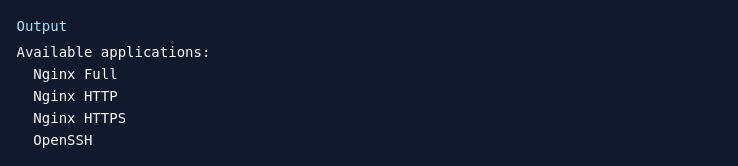
You should get a listing of the application profiles:
As demonstrated by the output, there are three profiles available for Nginx:
Nginx Full: This profile opens both port 80 (normal, unencrypted web traffic) and port 443 (TLS/SSL encrypted traffic)
Nginx HTTP: This profile opens only port 80 (normal, unencrypted web traffic)
Nginx HTTPS: This profile opens only port 443 (TLS/SSL encrypted traffic)
It is recommended that you enable the most restrictive profile that will still allow the traffic you’ve configured. Right now, we will only need to allow traffic on port 80.
You can enable this by typing:
```html
sudo ufw allow 'Nginx HTTP'
```
Verify the change by typing:
```html
sudo ufw status
```
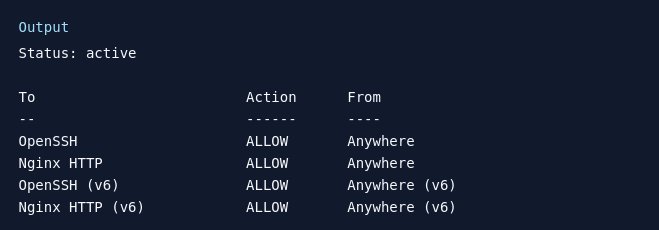
The output will indicated which HTTP traffic is allowed:
**Step 3: Checking your Web Server**
At the end of the installation process, Ubuntu 20.04 starts Nginx. The web server should already be up and running.
The systemd init system to make sure the service is running by typing:
```html
systemctl status nginx
```
As confirmed by this out, the service has started successfully. However, the best way to test this is to actually request a page from Nginx.
**3. Installing PHP**
To install php package, run the following command:
```html
sudo apt install php8.2-mbstring php8.2-xml php8.2-bcmath php8.2-simplexml php8.2-intl php8.2-gd php8.2-curl php8.2-zip php8.2-gmp
```
Once the installation is finished, you can run the following command to confirm your PHP version:
```html
php -v
```
**4. Installing Composer**
Update the local repository lists by entering the following in a command line.
```html
sudo apt update
```
The following curl command to have the latest Composer version.
```html
curl -sS https://getcomposer.org/installer | php
```
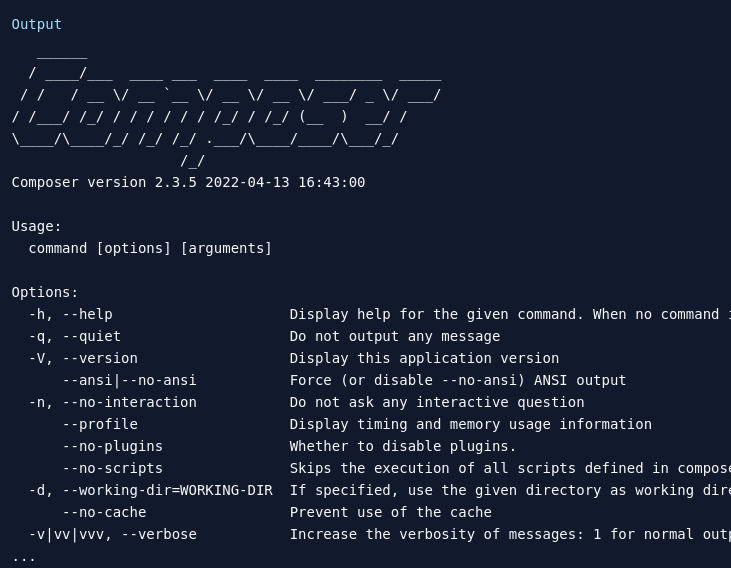
To test composer installation, run:
```html
composer
```
**5. Install MySQL Database & User**
Now that you have a web server up and running, you need to install the database system to be able to store and manage data for your site. MySQL is a popular database management system used within PHP environments.
```html
sudo apt install mysql-server
```
When prompted, confirm installation by typing Y, and then ENTER.
Start the interactive script by running:
```html
sudo mysql_secure_installation
```
When you’re finished, test whether you’re able to log in to the MySQL console by typing:
```html
sudo mysql
```
This will connect to the MySQL server as the administrative database user root, which is inferred by the use of sudo when running this command. Below is an example output:
Create MySQL database and assign all privileges by using following commands:
```html
CREATE DATABASE Taxido_laravel;
```
```html
CREATE USER 'Taxido'@'%' IDENTIFIED WITH mysql_native_password BY 'password';
```
```html
GRANT ALL ON Taxido_laravel.* TO 'Taxido'@'%';
```
```html
FLUSH PRIVILEGES;
```
```html
sudo chown -R $USER:$USER /var/www;
```
**7. Change permission for the www folder**
```html
sudo chown -R $USER:$USER /var/www;
```
**8. Upload Taxido Laravel to Server**
To make a new directory on your website, just type this command:
```html
mkdir /var/www/Taxido
```
1. Download the Taxido-laravel-react\_native-package zip file from CodeCanyon and unzip it on your computer.
2. Inside the unzipped folder, find Taxido\_laravel folder
3. Upload the Taxido\_laravel folder to the server at the path /var/www/Taxido/.
**9. Enable multiple sites on nginx**
To begin, configure server and establish a Reverse Proxy to host multiple sites on the same server. Start by disabling the default settings.
```html
sudo rm /etc/nginx/sites-enabled/default
```
**10. Create Nginx domain**
```html
sudo touch /etc/nginx/sites-available/Taxido
```
```html
sudo nano /etc/nginx/sites-available/Taxido
```
Include the following Nginx configuration in your edited file:
```html
server {
listen 80;
server_name your-domain.com;
client_max_body_size 256M;
add_header X-Frame-Options "SAMEORIGIN";
add_header X-XSS-Protection "1; mode=block";
add_header X-Content-Type-Options "nosniff";
index index.php index.htm;
charset utf-8;
# For Admin
location / {
root /var/www/Taxido; # Adjust the path to your Laravel app's build output
try_files $uri $uri/ /index.php;
}
error_page 404 /index.php;
location ~ \.php$ {
fastcgi_pass unix:/var/run/php/php8.2-fpm.sock;
fastcgi_index index.php;
fastcgi_param SCRIPT_FILENAME $realpath_root$fastcgi_script_name;
include fastcgi_params;
}
location ~ /\.(?!well-known).* {
deny all;
}
}
```
{% hint style="info" %}
Ensure to replace "your-domain.com" with the actual domain name you are using.
{% endhint %}
After making your changes, press CTRL and X, then confirm by pressing Y and ENTER to save and close the file.
To enable the configuration, enable it with an easy command.
```html
sudo ln -s /etc/nginx/sites-available/Taxido /etc/nginx/sites-enabled/
```
Please make sure there are no mistakes in the configuration by typing:
```html
sudo nginx -t
```
Then restart Nginx server.
```html
sudo systemctl restart nginx
```
**11. Secure Nginx Server**
```html
sudo apt install certbot python3-certbot-nginx
```
You need to modify its settings to permit HTTPS traffic. Fortunately, Nginx creates specific profiles in ufw during installation.
```html
sudo ufw status
```
```html
sudo ufw allow 'Nginx Full'
```
```html
sudo ufw delete allow 'Nginx HTTP'
```
```html
sudo certbot --nginx -d your-domain
```
### **Installing Taxido Laravel**
**1. Initially, navigate to the Taxido\_laravel directory, and change the file named .env.example as .env.**
```html
cd /var/www/Taxido/Taxido_laravel
```
```html
nano .env
```
```html
cp .env.example .env
```
If you're running your Laravel project on your own computer (localhost), make sure to use localhost with current running port and put in APP\_URL. as a given example below
If you want to install on live server, you need to add your live server Taxido\_laravel url like a APP\_URL=.
```html
APP_URL=http://localhost:8000
DB_DATABASE=database_name
DB_USERNAME=database_username
DB_PASSWORD=database_password
```
{% hint style="warning" %}
Note: Make sure to set the APP\_URL correctly. If you don't, features like uploading, downloading, and showing images won't work properly. Be sure to double-check and make sure everything is set up correctly.
{% endhint %}
**2. Install Required Dependencies:**
In the Taxido\_laravel folder, run following command in the terminal to install the required dependencies.
```html
composer install
```
**3. Generate Laravel APP KEY:**
Once the necessary dependencies are successfully installed, run following command to generate laravel app key.
```html
php artisan key:generate
```
**4. Installation of Taxido:**
{% hint style="info" %}
**Note:** If you've previously run following command or migrated tables, be aware of the fact that it will erase all of your data.
{% endhint %}
Then, run following command to install Taxido database table.
```html
php artisan web:install
```
During the installation, you'll be asked two questions:
1\. Do you want to continue with the installation? If you say yes, Taxido will continue to install.
2\. Do you want to import in sample data? If you say yes, the sample data will be imported. If you say no, the installation will go ahead without adding any sample data.
**5. Link Storage folder to Public folder:**
Then, run following command to store and display images correctly.
```html
php artisan storage:link
```
**6. Run Taxido Laravel:**
Once you've finished all the previous steps, you can run the Taxido\_laravel by adding following command.
```html
php artisan serve
```
When you start your Taxido Laravel project, it typically runs on the default port, you can access it by opening [127.0.0.1:8000 ](http://127.0.0.1:8000/)in your web browser.
**7. Verify Taxido Purchase Code:**
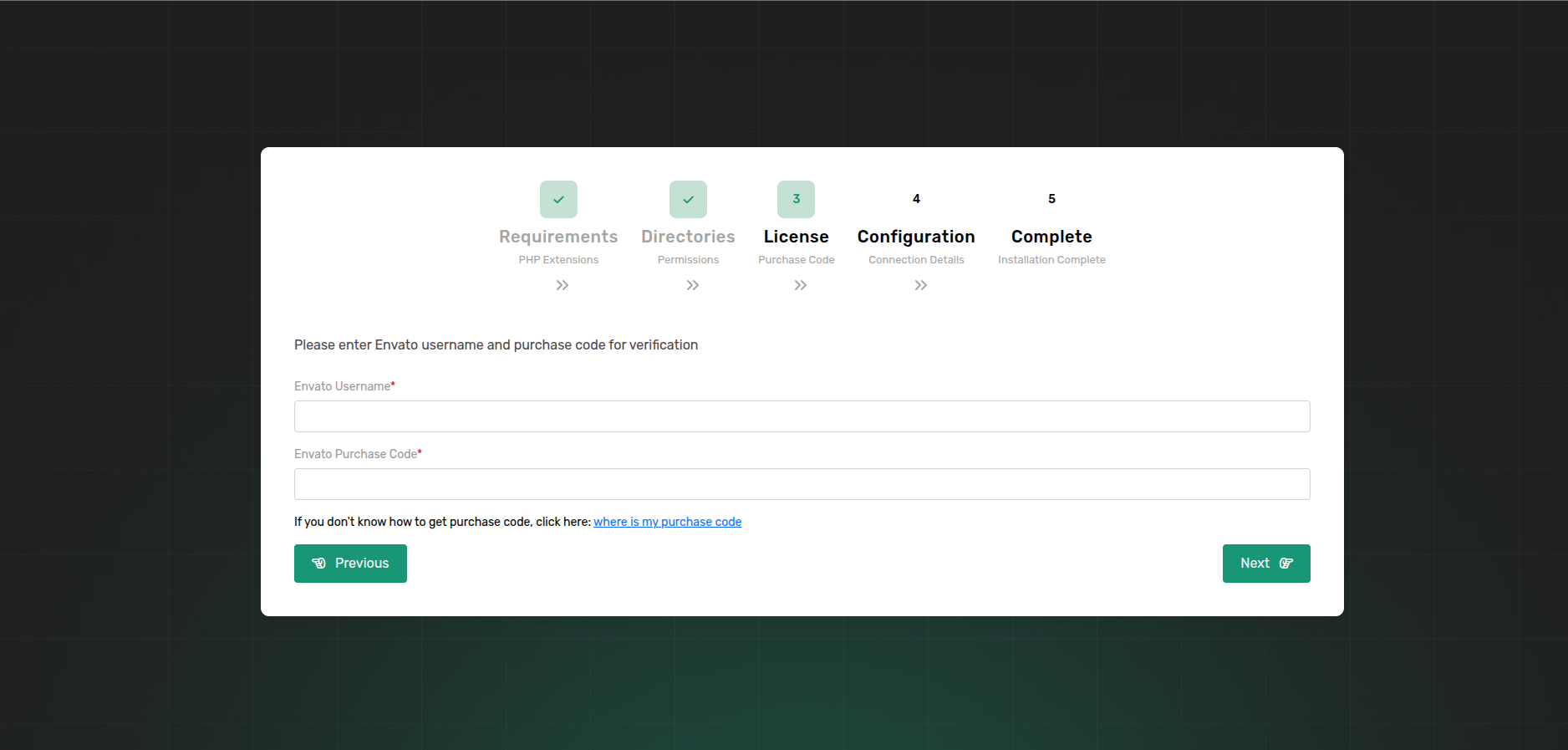
Before using the Taxido Laravel, it's important to verify your Envato purchase code.
Enter in your Envato username and the Taxido purchase code and click next button.
If you don't know where to find your purchase code, click here: [Where Is My Purchase Code?](https://help.market.envato.com/hc/en-us/articles/202822600-Where-Is-My-Purchase-Code)
{% hint style="warning" %}
**Note:** Once a license is verified, it can't be used for another project. An envato purchase code can only be verified on one domain at a time.
{% endhint %}
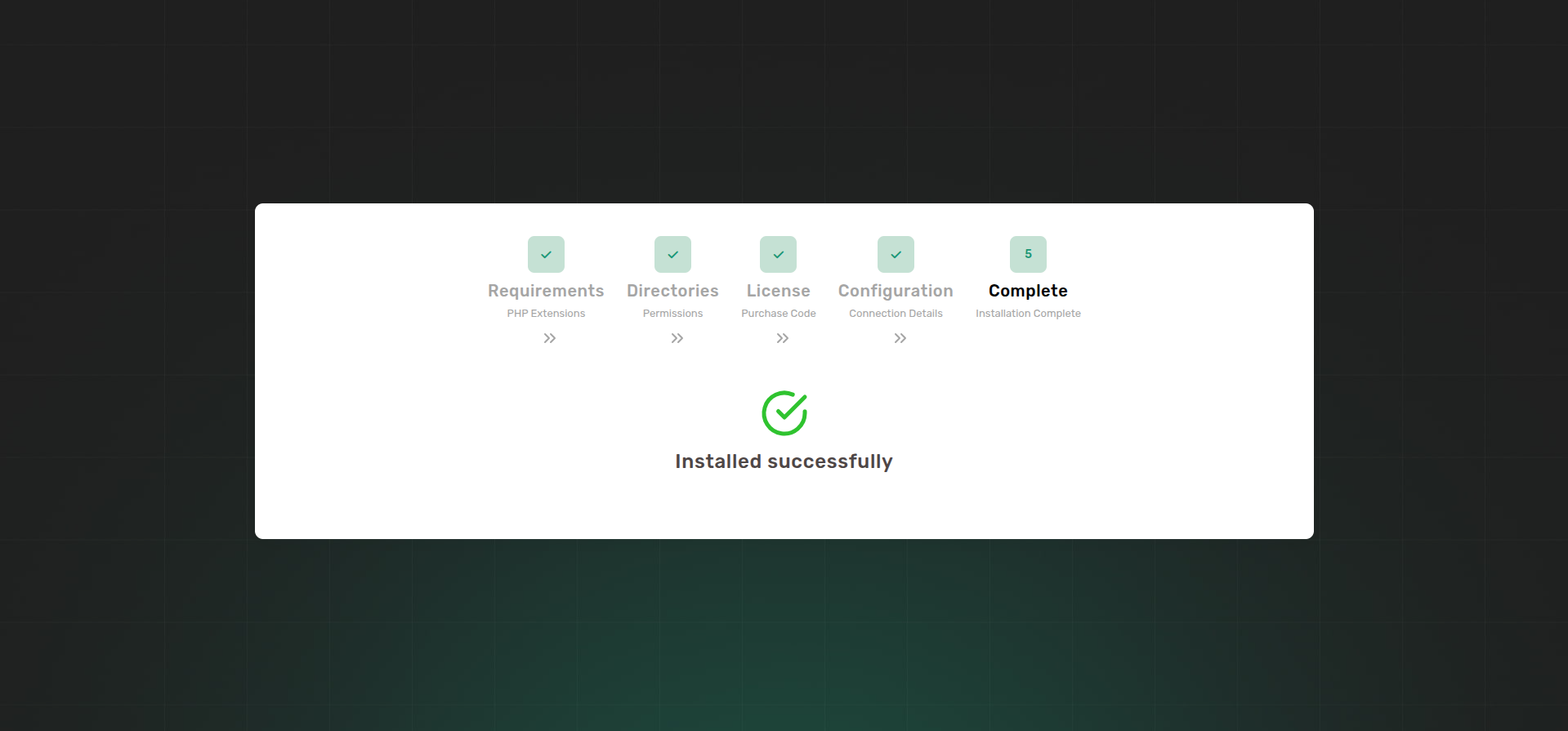
Congratulations, Taxido has been successfully installed and configured in your system!🎉
### **Default Credentials**
**Admin Credential:**
Url:
Email:
Password: 123456789
**Driver Credential:**
Url:
Email:
Password: driver\@123
**User Landing Page:** [**https://your-domain.com**](https://your-domain.com/)