# cPanel Server Laravel (GUI)
### **Getting Started Taxido API Deployment**
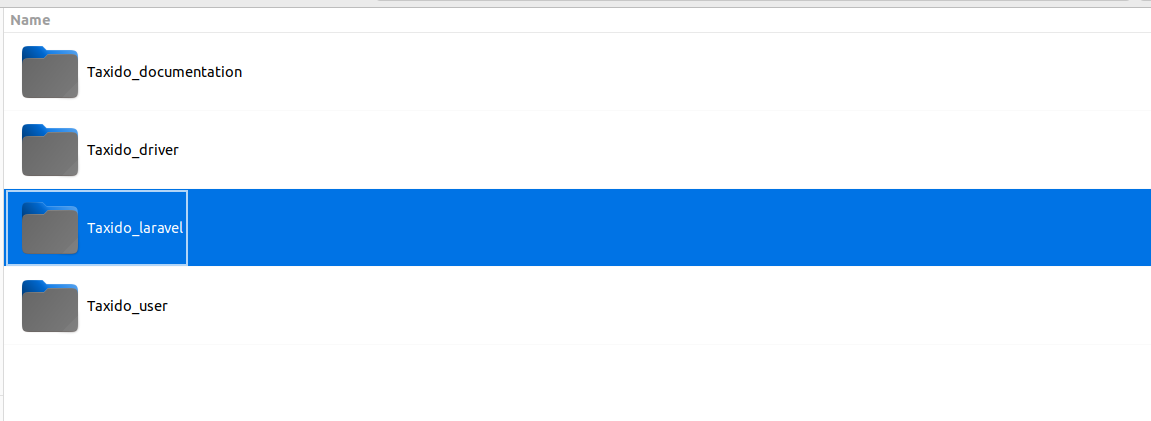
**1. Open Taxido-laravel directory that you downloaded from CodeCanyon.**
**2. Building Assets and SCSS:**
**Note:** Please make sure you've installed NodeJs. If you haven't installed, you can easily do by following this link: [Link to Laravel Prerequisites.](https://docs.pixelstrap.net/laravel/taxido/laravel-requirment.html#nodejs)
To set up and compile your assets and SCSS files, follow these steps:
First, you need to install the necessary Node modules.
```html
npm i
```
Compile assets and scss by running below command.
```html
npm run build
```
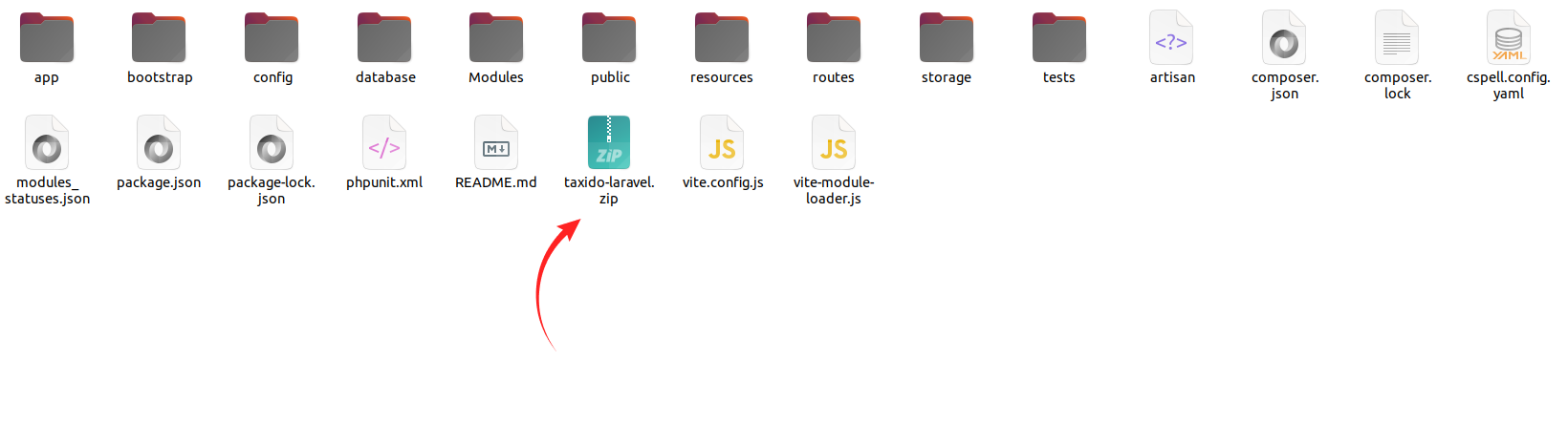
**3. Create a .zip file**
Zip all files and folders in the Taxido-laravel folder and upload it to your cPanel server.
Delete the node\_modules folder from the project or exclude it when creating the zip file.
**4. Create Subdomain**
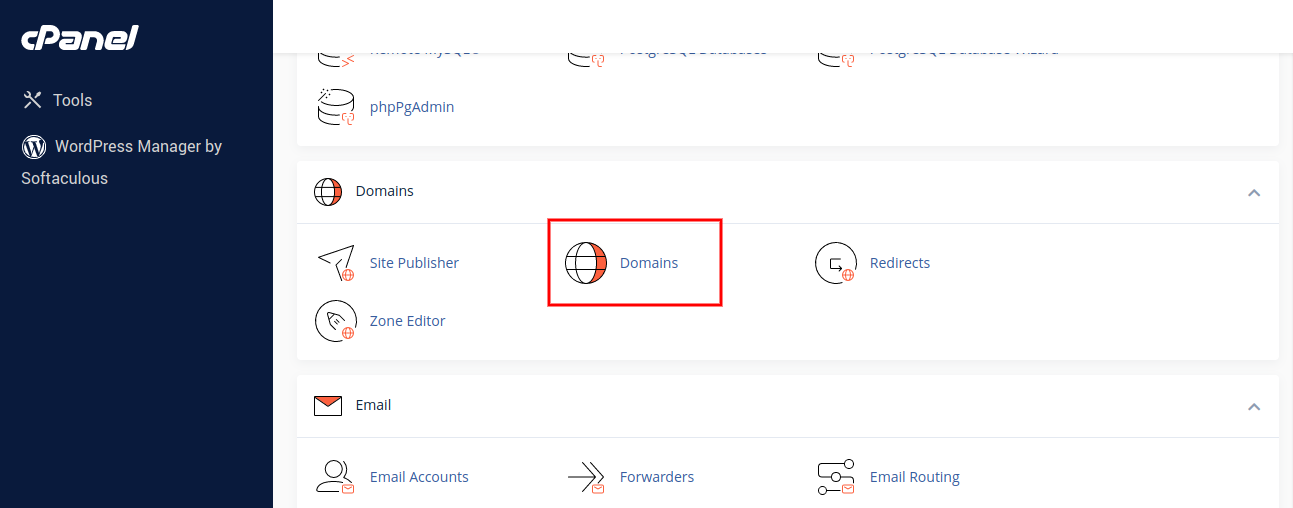
Login to your cPanel server and click on domains in the domains section.
Create separate subdomains for Taxido Laravel.
```html
your-domain.com -> Taxido-laravel.
```
**5. Upload Zip file on cPanel:**
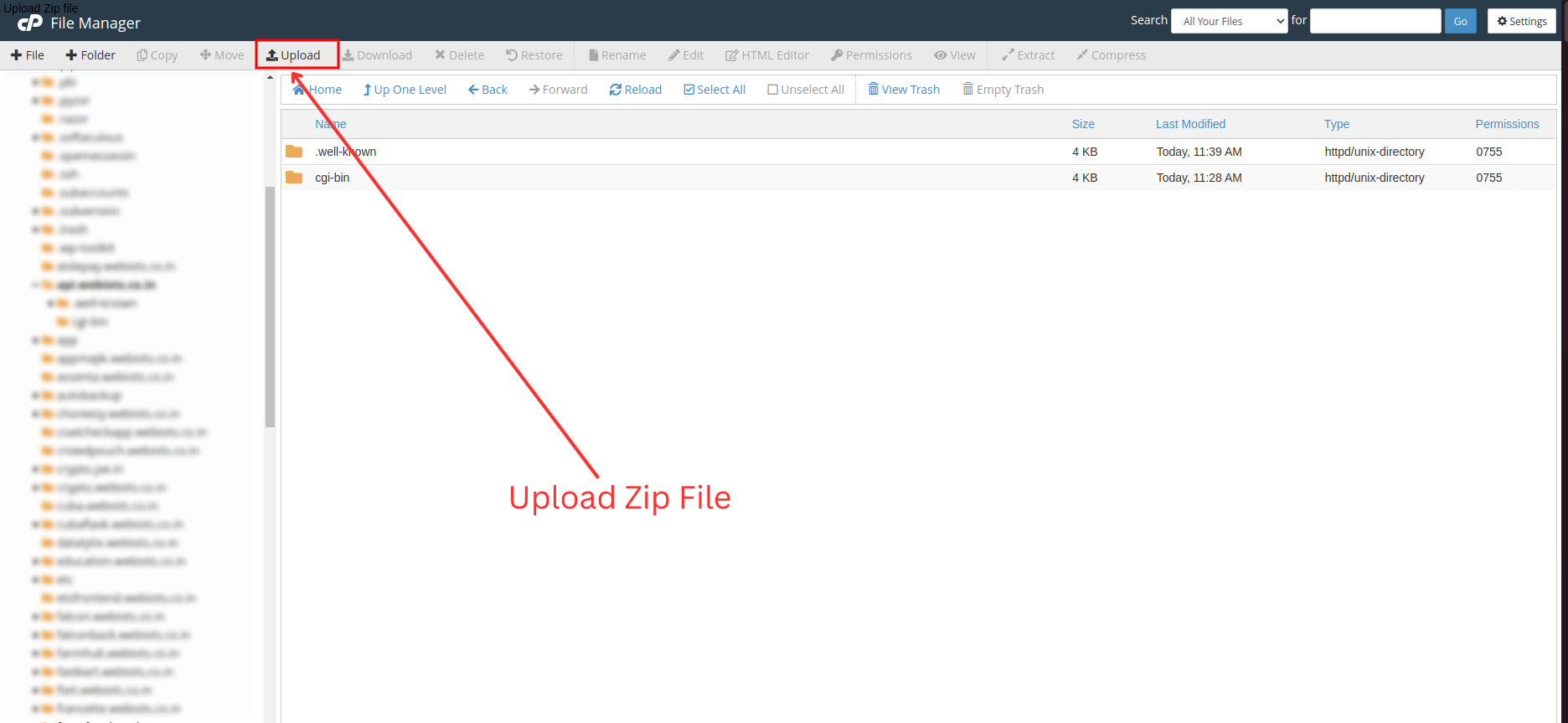
Upload the Taxido-laravel zip file in the laravel's subdomain (api.your-domain.com).
Click on the Go Back link after the file is 100% uploaded.
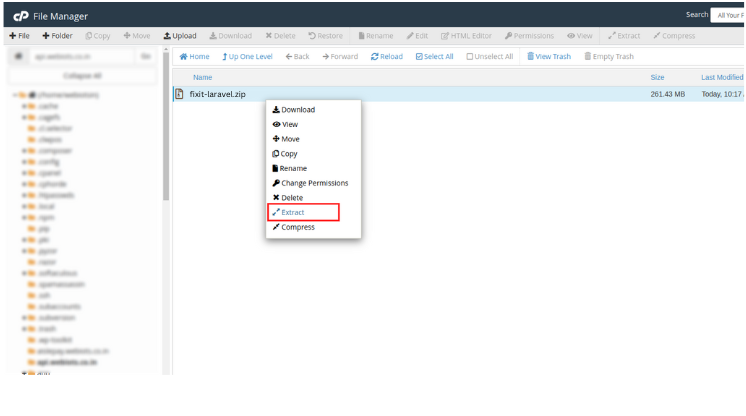
**6. Extract Laravel Zip File**
**7. Create MySQL Database:**
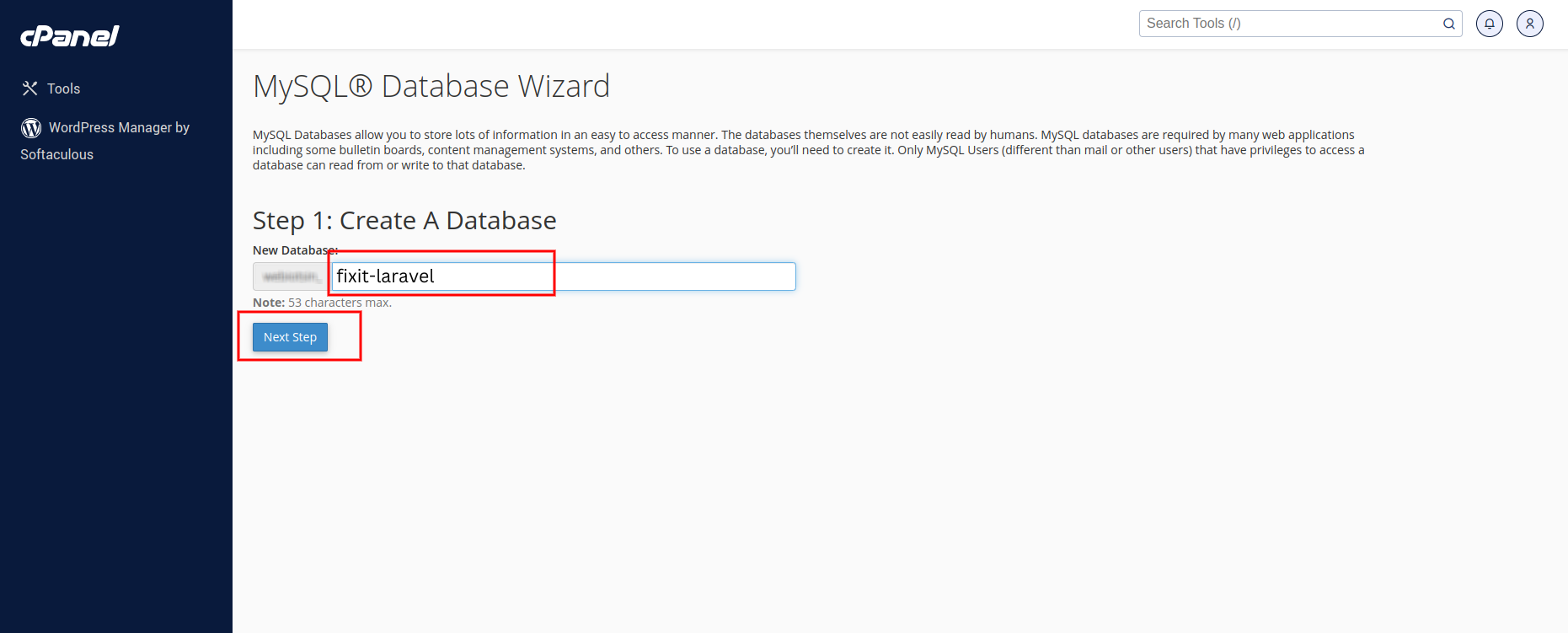
Now move to cpanel manager and go to > MySQL Database Wizard
Create database in MySQL Database Wizard
Create database users and remember their passwords for the installation process.
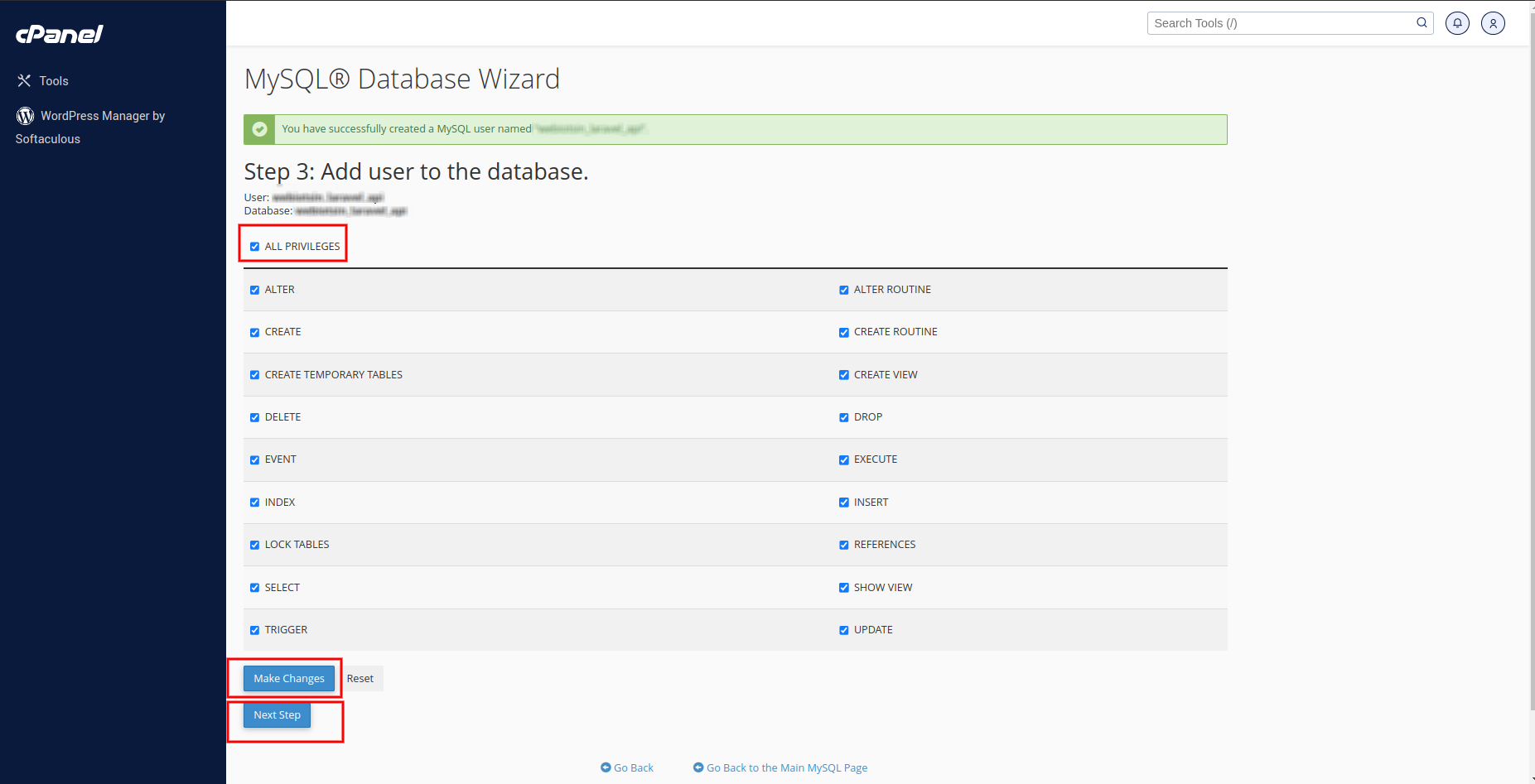
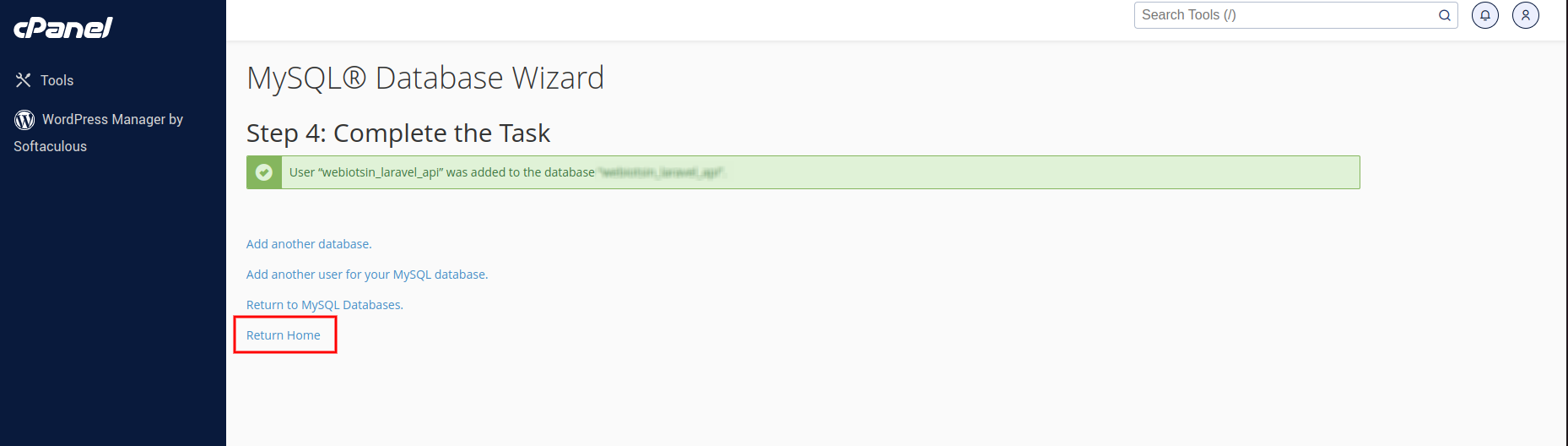
Add a user to the database, give them all the necessary permissions, and then click 'Make Changes.' After that, click 'Next Step.
Make a note of the database user, database name, and database password after creating the database.
**8. Update Environment File**
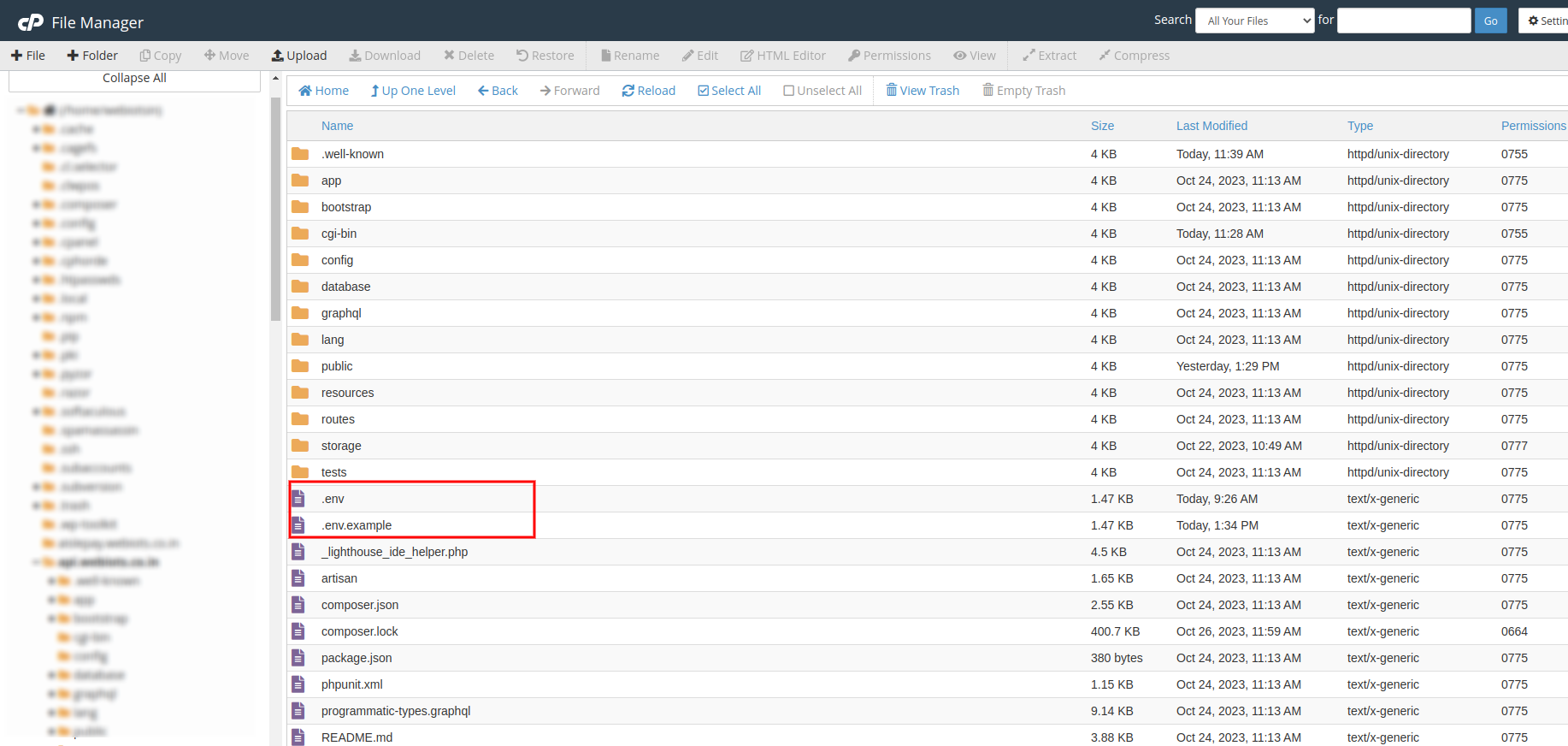
After creating the MySQL database, go to Taxido-laravel folder from your cPanel file manager and edit **.env** file.
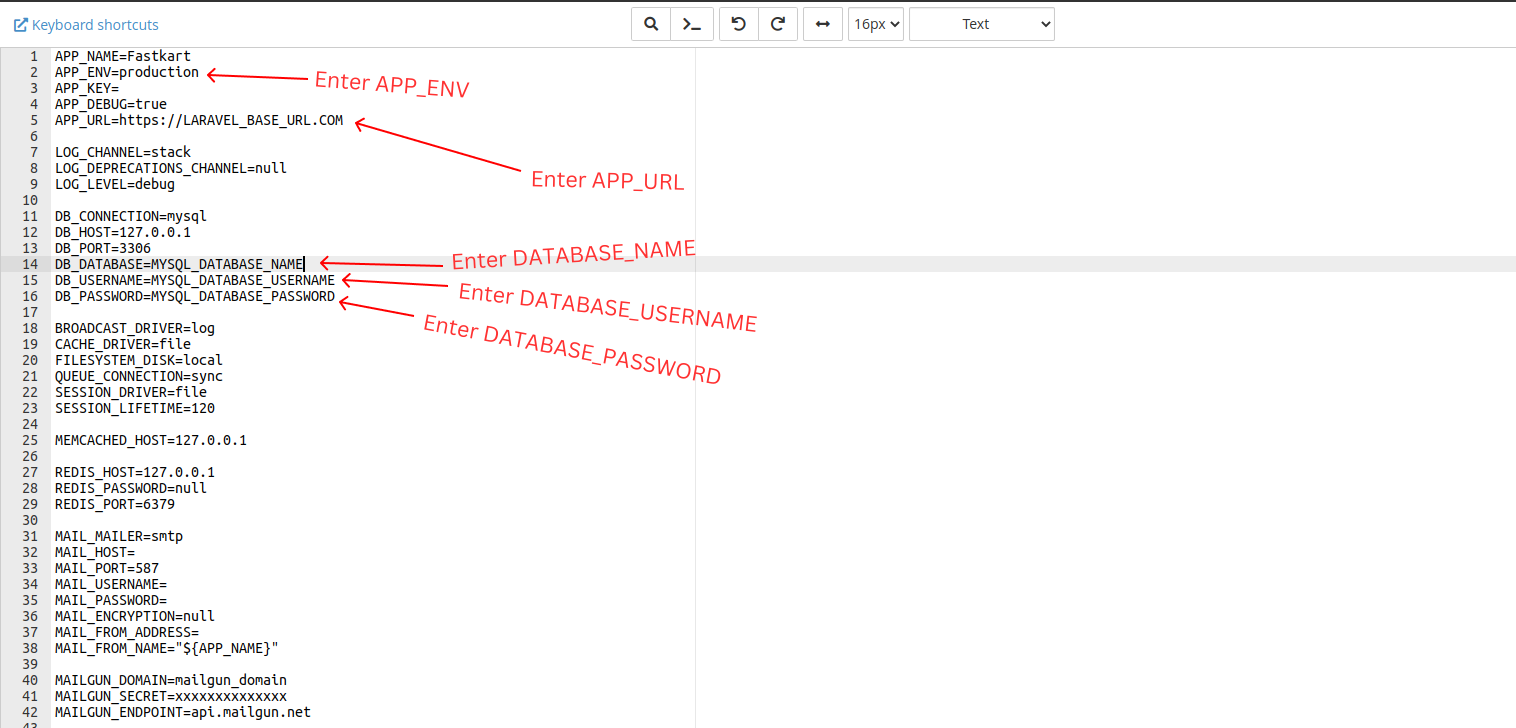
Add Laravel base url in APP\_URL key.
Also, change local to production in APP\_ENV.
Add MySQL database credentials.
Add you Taxido-laravel primary domain url like a APP\_URL=.
```html
APP_URL=https://your-domain.com
APP_ENV=production
DB_DATABASE=your_db_name
DB_USERNAME=your_db_username
DB_PASSWORD=your_db_password
```
{% hint style="warning" %}
Note: Make sure to set the APP\_URL correctly. If you don't, features like uploading, downloading, and showing images won't work properly. Be sure to double-check and make sure everything is set up correctly.
{% endhint %}
**9. Open cPanel Terminal**
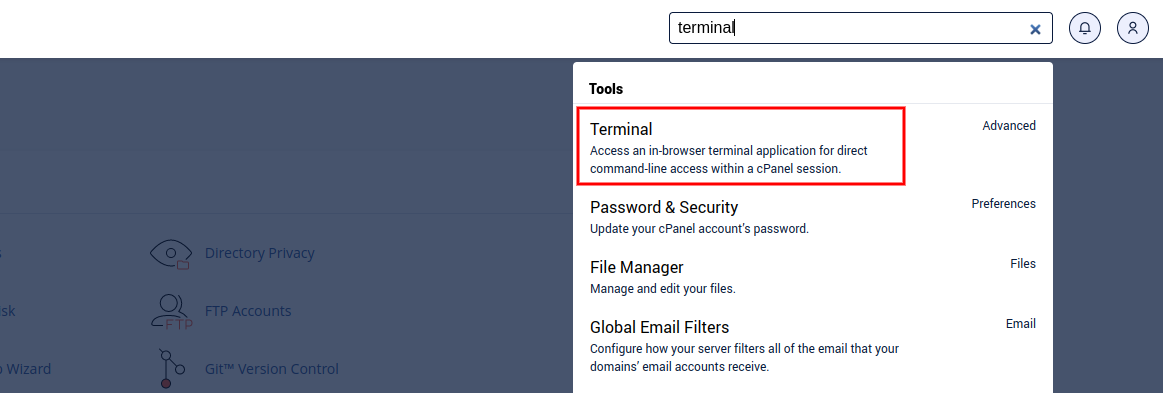
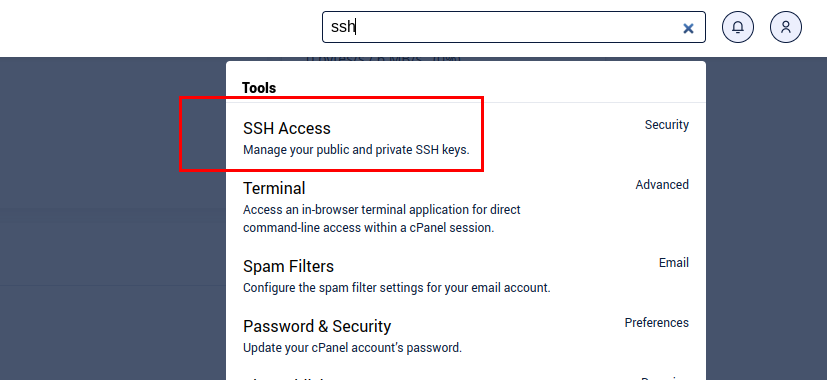
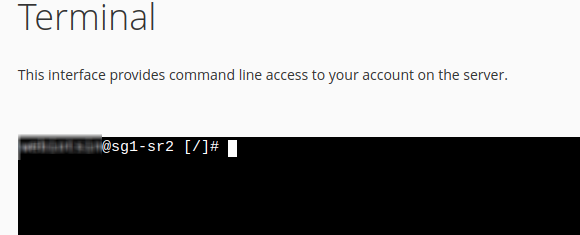
Enter terminal in cPanel search bar and select terminal.
If you can't find the terminal, please log in to your local computer terminal or use Putty for Windows via SSH.
{% hint style="info" %}
If you can't find the terminal, please contact your hosting driver, as they manage the cPanel control.
{% endhint %}
Once you've opened the terminal, navigate to the root folder of laravel project.
**10. Install Required Dependencies:**
In the laravel subdomain folder (api.your-domain.com), run this command to install the required dependencies.
```html
composer install
```
**11. Run Taxido Installation Wizard:**
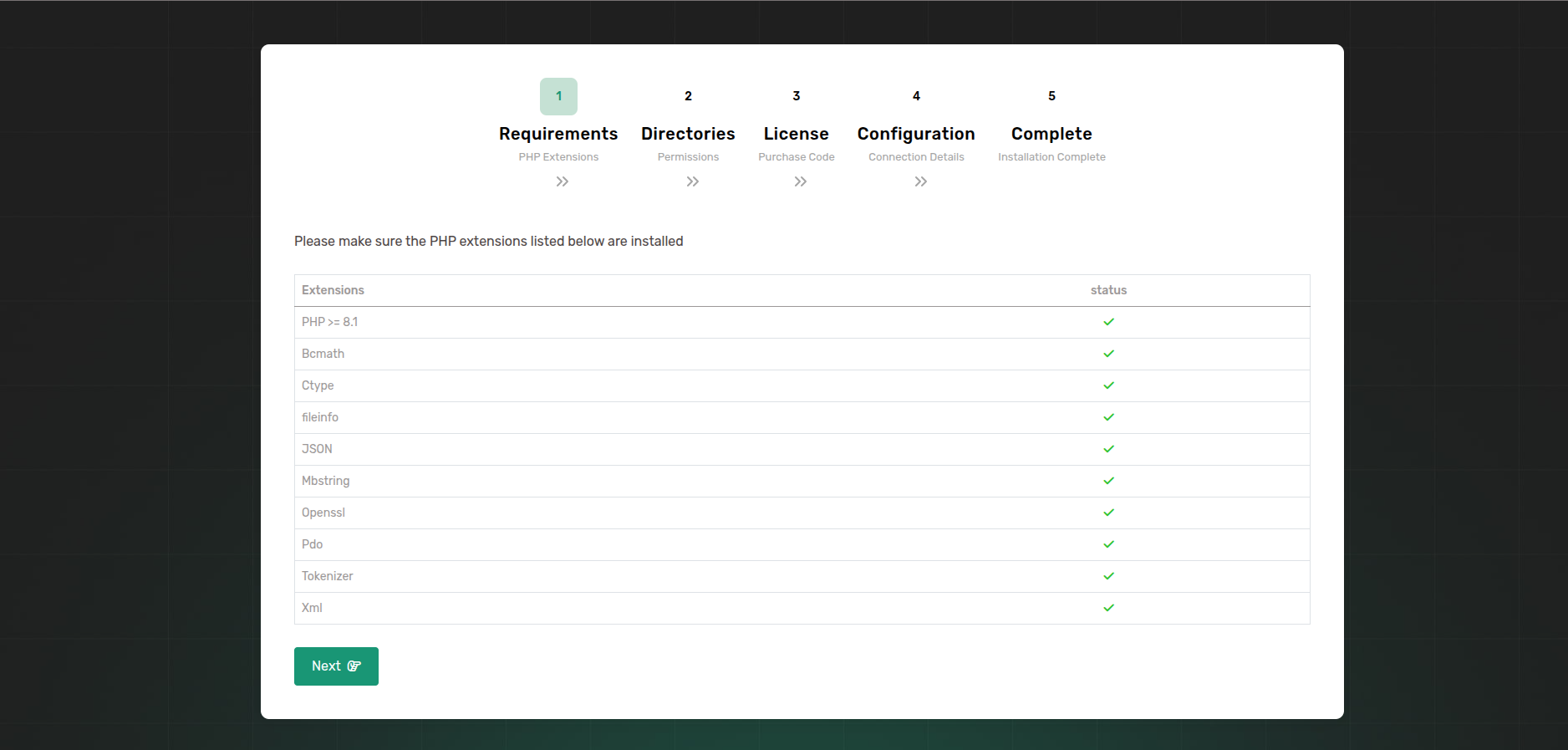
Once you open api.your-domain.com in your web browser, the Taxido installation wizard will appear.
Step 1: Before you proceed to the next step, make sure that the specified PHP extensions are installed on your system.
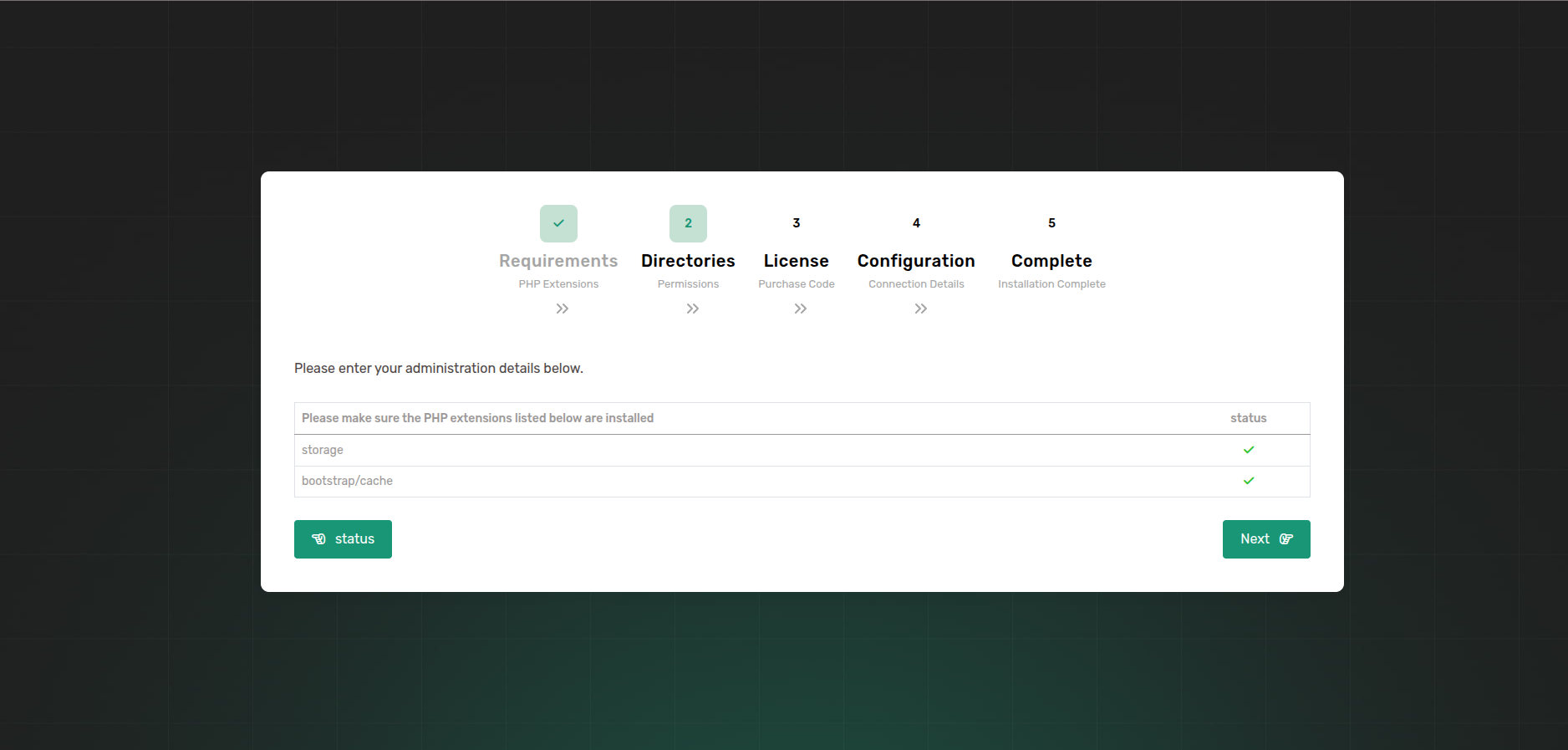
Step 2: Once all the required PHP extensions are installed, proceed to the next step to check permissions for specific folders to ensure they are allowed.
If permissions are not allowed for the mentioned folders, please allowed folder permissions and proceed to the license verification step.
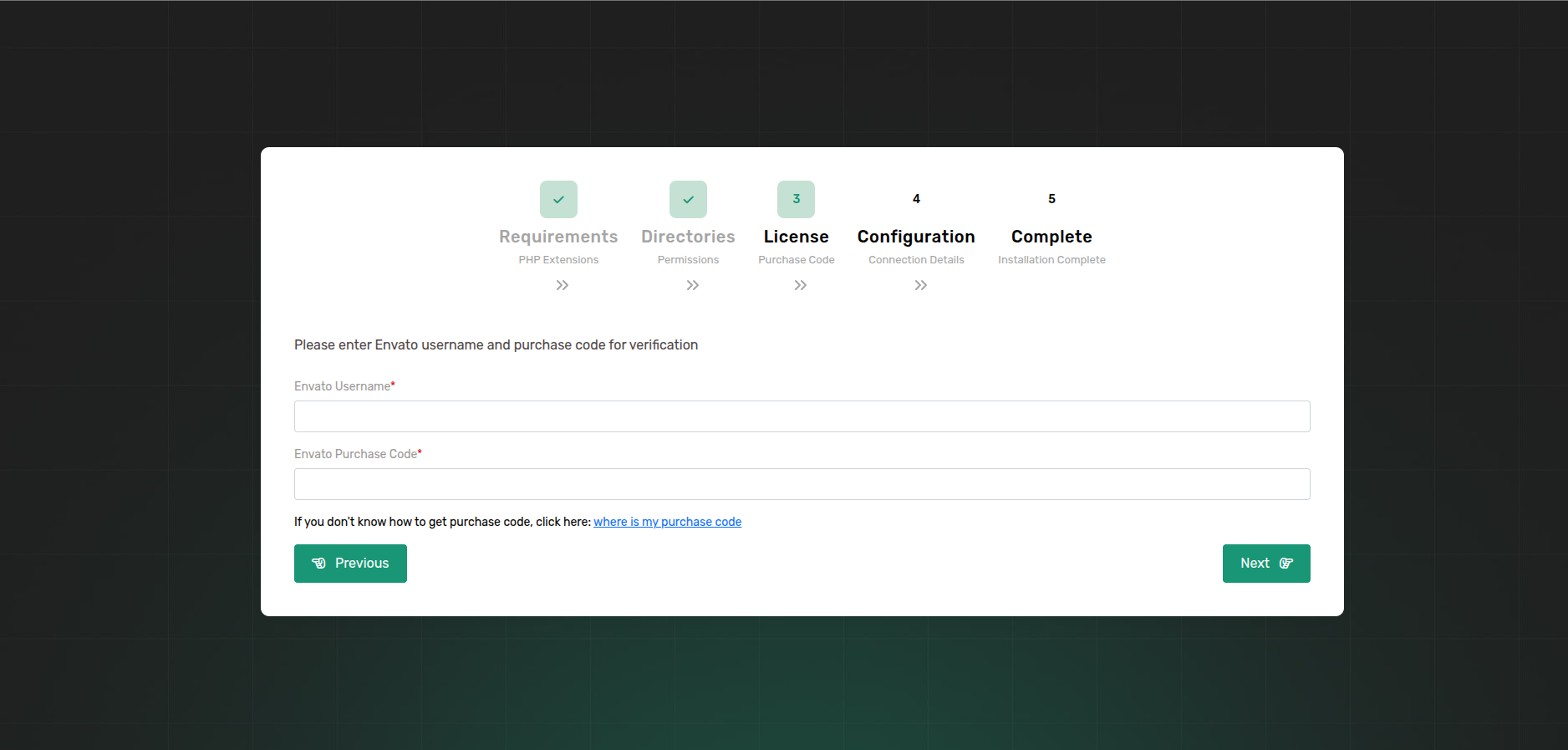
Step 3: Before using the Taxido API, it's important to verify your Envato purchase license code.
Enter in your Envato username and the Taxido purchase code and click next button.
If you don't know where to find your purchase code, click here: [Where Is My Purchase Code?](https://help.market.envato.com/hc/en-us/articles/202822600-Where-Is-My-Purchase-Code)
{% hint style="warning" %}
**Note:** Once a license is verified, it can't be used for another project. An Envato Purchase License can only be verified on one domain at time.
{% endhint %}
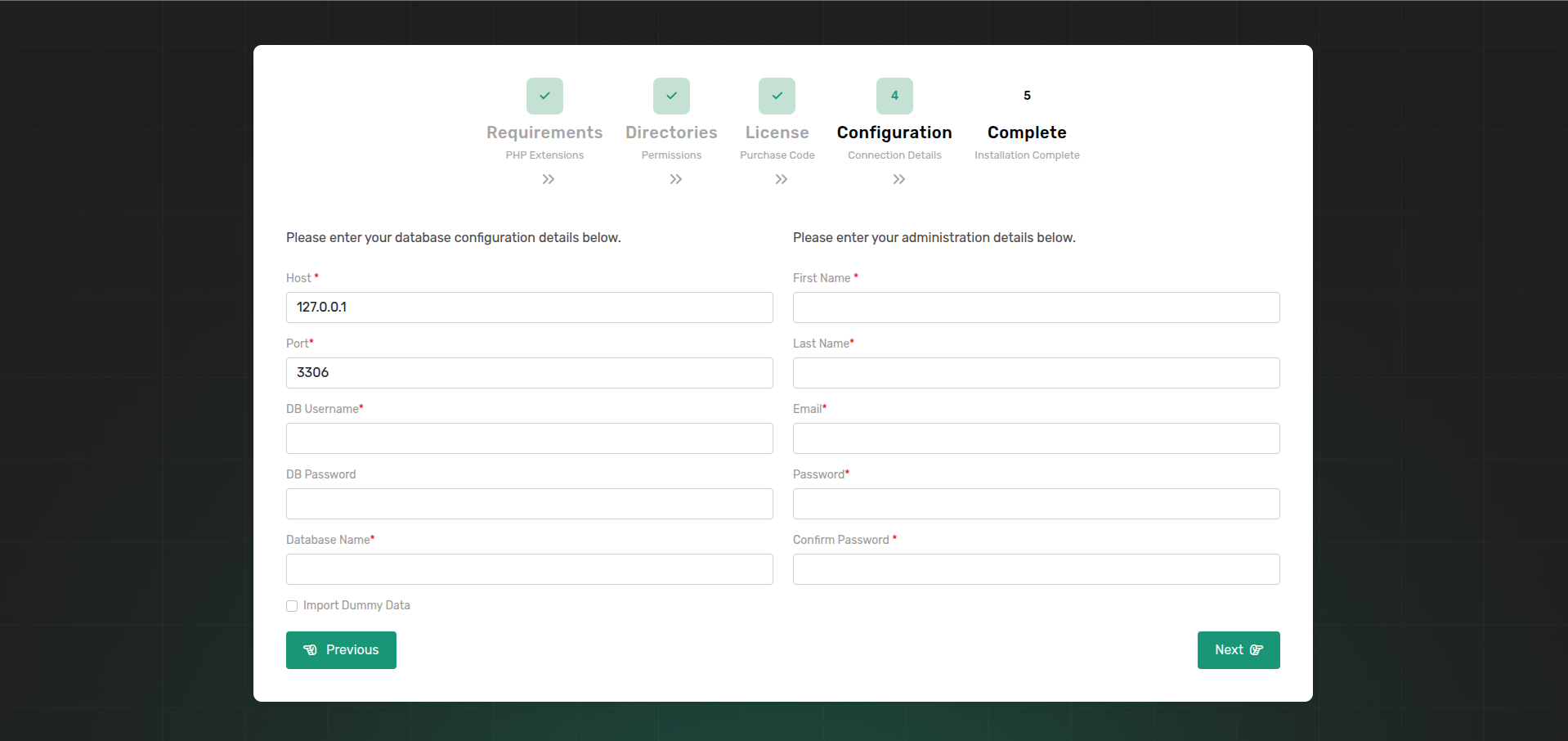
Step 4: Once the license has been verified, proceed to the database configuration step.
Enter the essential MySQL database credentials to connect the Laravel API to the MySQL database such as a database host, username, password, and database name.
To import sample data, select "Import Dummy Data". After selecting this option, the administration details will be hidden. Click the "Next" button to the sample data will be imported.
If you prefer not to import sample data, you can deselect "Import Dummy Data" After that, enter the administration details. Once done, click the "Next" button to proceed.
{% hint style="warning" %}
**Note:** After entering the required information and clicking "Next," the database setup will start. It might take few minutes, so please wait patiently.
{% endhint %}
Step 5: Once all steps are finished, Congratulations! Taxido has been successfully installed and configured on your system! 🎉
**12. Test Your Live Application:**
Visit your website in a web browser to ensure everything is working correctly.
**References for deploying a Laravel project in cPanel**
Here are some references that can guide you through deploying a Laravel project on a cPanel server:
1. **Laravel Official Documentation:** It includes sections on deploying Laravel applications and provides insights into best practices.
[Laravel Official Documentation - Deployment](https://laravel.com/docs/10.x/deployment)
2. **cPanel's Documentation:** Check for information related to hosting, databases, and other cPanel features.
[cPanel Documentation](https://docs.cpanel.net/cpanel/)
3. **Host-Specific Guides:** Your hosting driver might have specific guides or documentation related to Laravel deployment.
### **Setup Cron Job**
Below is a step-by-step guide on how to set up a cron job in cPanel for running a Laravel command.
**1. Access cPanel**
Log in to your cPanel account using your credentials provided by your hosting driver.
**2. Navigate to the Cron Jobs Section**
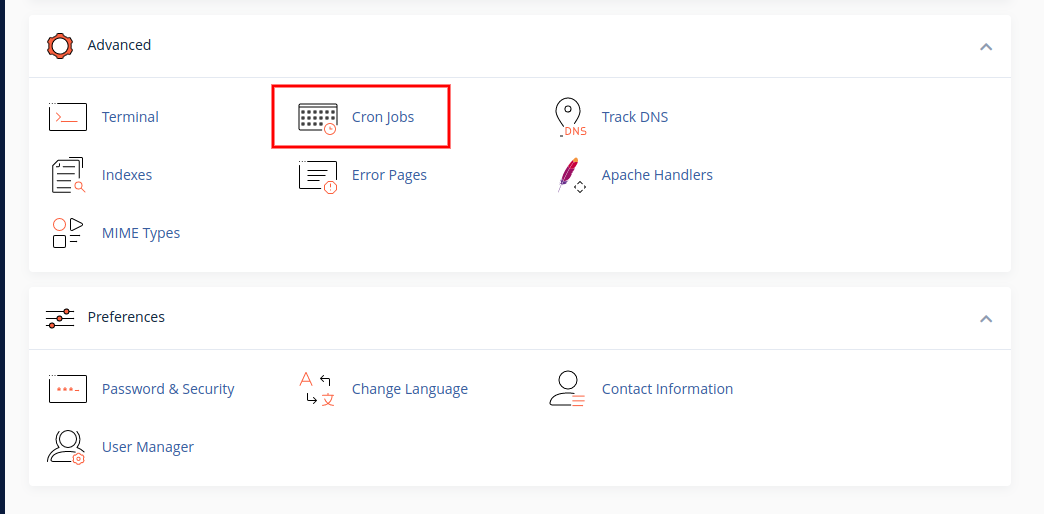
1. In the cPanel dashboard, scroll down to the "Advanced" section.
2. Click on "Cron Jobs."
#### **3. Configure the Cron Job**
To configure the cron job to run your Laravel command, follow these steps:
1. Select common settings which you want to run Laravel schedule command (e.g., every 5 minutes).
2. In the Command field, enter the path to Laravel's `artisan` file from the API subdomain's root directory (e.g., `api.your-domain.com/artisan`) and include the following command:\
`schedule:run`
3. To enable notifications, you also need to set up the queue worker. Use the following command:\
`queue:work --once`\
This should be run from the same API subdomain root folder (`api.your-domain.com`).
4. Click to **Add New Cron Job** Button, then add new cron job in cPanel.
### **Default Credentials**
**Admin Credential:**
Url:
Email:
Password: 123456789
**Driver Credential:**
Url:
Email:
Password: driver\@123
**User Landing Page:** [**https://your-domain.com**](https://your-domain.com/)







.png)