# Phone Login
{% hint style="info" %} :bullhorn: NOTE :\
Before launching the app, ensure you have correctly set up the ADMIN LARAVEL and have added all necessary data through the admin panel.
{% endhint %}
{% hint style="info" %} :bullhorn: NOTE : For Firebase Phone Authentication, you need to enable billing on your Firebase account, as it is required.
{% endhint %}
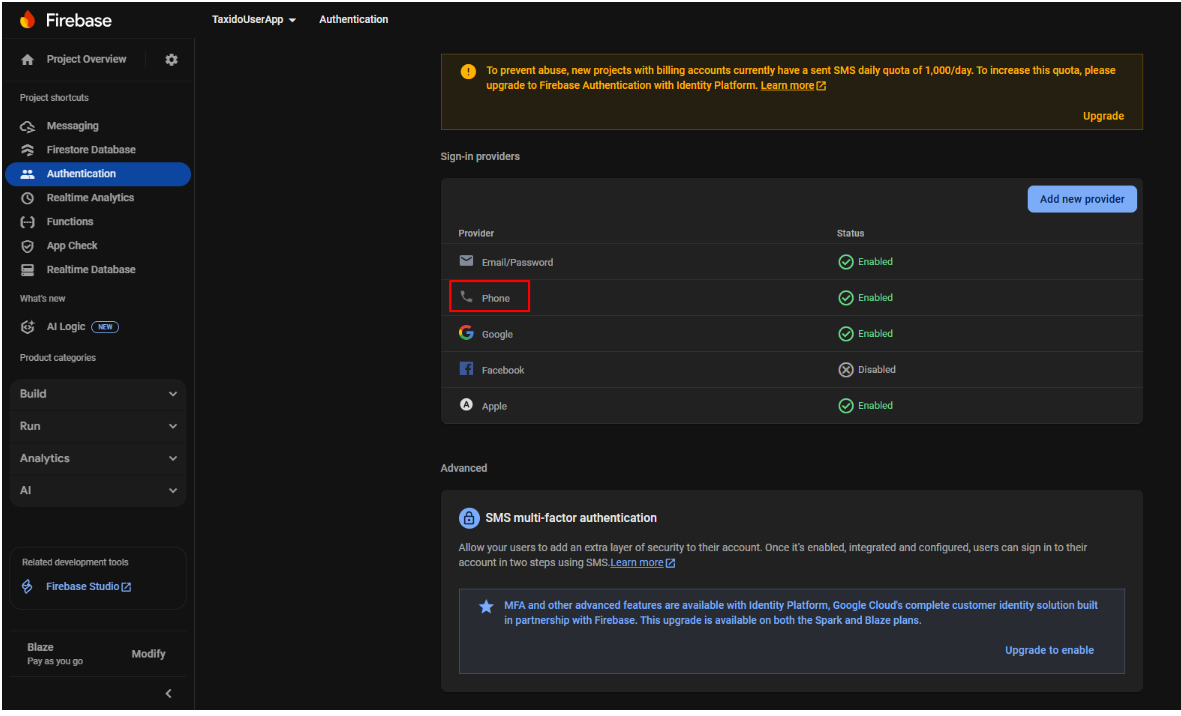
1. In the left-hand menu, click **Authentication**.
2. In the Firebase Console, go to the Sign-in method tab and click on Phone .
3. Find **Phone** in the list of providers and click the **Edit (✏️)** icon.
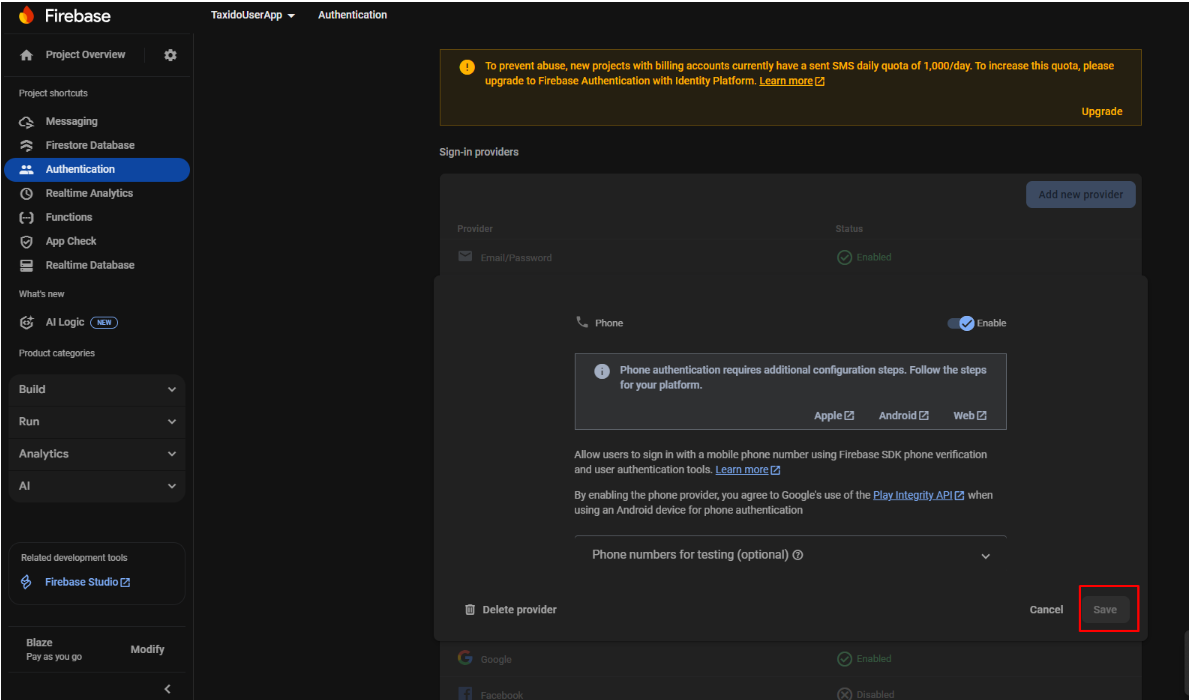
4. Enable the toggle for **Phone** Sign-In.
5. Click the **Save** button.
6. The Phone Login setup will be completed successfully.