# Google Map

## ![](https://docs.pixelstrap.net/laravel/taxido/assets/images/icons/map.png)  **Google Map Setup & Get Generated Key :**

{% hint style="info" %} <i class="fa-bullhorn">:bullhorn:</i> NOTE : Before launching the app, ensure you have correctly set up the ADMIN LARAVEL and have added all necessary data through the admin panel.
{% endhint %}

{% hint style="info" %}
NOTE :&#x20;Before enabling the Google Maps API or JavaScript API, ensure that you have an active billing account.
{% endhint %}

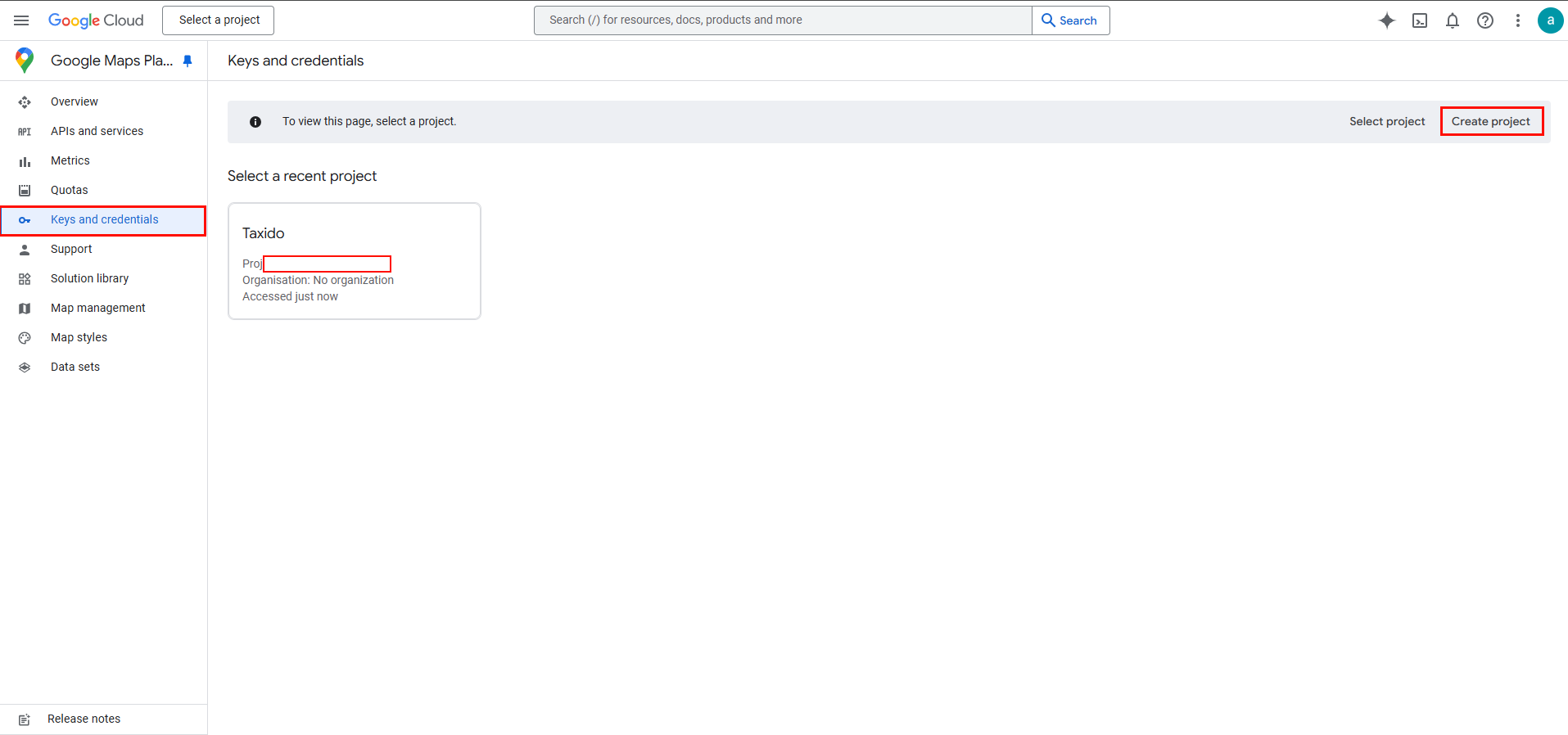
1. Go to [**>Google Maps Platform** ](https://console.cloud.google.com/projectselector2/google/maps-apis/credentials)and create a new project if needed.<br>

   <figure><img src="https://docs.pixelstrap.net/laravel/taxido/assets/app/screenshot/map1.png" alt=""><figcaption></figcaption></figure>
2. If a project exists, select it.

   <figure><img src="https://docs.pixelstrap.net/laravel/taxido/assets/app/screenshot/map2.png" alt=""><figcaption></figcaption></figure>

   <figure><img src="https://docs.pixelstrap.net/laravel/taxido/assets/app/screenshot/map3.png" alt=""><figcaption></figcaption></figure>
3. In the top menu, click on **+ CREATE CREDENTIALS**<br>

   <figure><img src="https://74030740-files.gitbook.io/~/files/v0/b/gitbook-x-prod.appspot.com/o/spaces%2F6o4UzjBZtMQpeq4oeh8s%2Fuploads%2FQou115OrUUcBZUqUwnj4%2Fimage.png?alt=media&#x26;token=f199dbf1-db85-4e67-af55-b93d84062646" alt=""><figcaption></figcaption></figure>
4. Select the **API Key** option.<br>

   <figure><img src="https://74030740-files.gitbook.io/~/files/v0/b/gitbook-x-prod.appspot.com/o/spaces%2F6o4UzjBZtMQpeq4oeh8s%2Fuploads%2Fhx4Gr9Sepvaa0JRPD2GB%2Fimage.png?alt=media&#x26;token=07345d16-85cd-4bff-a3df-81d581860b67" alt=""><figcaption></figcaption></figure>
5. Copy the generated **API Key**<br>

   <figure><img src="https://74030740-files.gitbook.io/~/files/v0/b/gitbook-x-prod.appspot.com/o/spaces%2F6o4UzjBZtMQpeq4oeh8s%2Fuploads%2FHp8InmtlHXXEVtvRkVu5%2Fimage.png?alt=media&#x26;token=b4da383d-0afb-4919-bef4-974dc80d0214" alt=""><figcaption></figcaption></figure>
6. Navigate to the `AndroidManifest.xml` file in your User App and Driver App under `android -> app -> src -> main`. Insert your key in this file.<br>

   <figure><img src="https://74030740-files.gitbook.io/~/files/v0/b/gitbook-x-prod.appspot.com/o/spaces%2F6o4UzjBZtMQpeq4oeh8s%2Fuploads%2F6S86AIwLPO2fjDjr89Nt%2Fimage.png?alt=media&#x26;token=2ec67165-d8f6-462c-acff-982c9af62dd5" alt=""><figcaption></figcaption></figure>
7. Open the <mark style="color:red;">`App.tsx`</mark> file in your **User App** and insert your Google Maps API key.<br>

   <figure><img src="https://74030740-files.gitbook.io/~/files/v0/b/gitbook-x-prod.appspot.com/o/spaces%2F6o4UzjBZtMQpeq4oeh8s%2Fuploads%2Fm9PAEcAP9yMCtekY8GxZ%2Fimage.png?alt=media&#x26;token=c57d7566-4878-48a2-8b97-06c459355881" alt=""><figcaption></figcaption></figure>
8. Open the <mark style="color:red;">`src/utils/context/index.tsx`</mark> file in your **Driver App** and insert your Google Maps API key.<br>

   <figure><img src="https://74030740-files.gitbook.io/~/files/v0/b/gitbook-x-prod.appspot.com/o/spaces%2F6o4UzjBZtMQpeq4oeh8s%2Fuploads%2F6chRz8zTXbtAWL9ac45w%2Fimage.png?alt=media&#x26;token=d9e7204a-53d9-4b53-a0f1-b74db1c8a95e" alt=""><figcaption></figcaption></figure>

### **=> How to Retrieve and Configure the Search Location in the App**

1. First, navigate to the Google Cloud Console, select your project, and open APIs & Services.<br>

   <figure><img src="https://74030740-files.gitbook.io/~/files/v0/b/gitbook-x-prod.appspot.com/o/spaces%2F6o4UzjBZtMQpeq4oeh8s%2Fuploads%2FgPE8eZqaQosyxPeD6heO%2Fimage.png?alt=media&#x26;token=53bae7c9-93ec-4740-9717-68a21e25475d" alt=""><figcaption></figcaption></figure>
2. Alternatively, you can visit the Google API Library, choose your project, and select the Places and Route API.<br>

   <figure><img src="https://74030740-files.gitbook.io/~/files/v0/b/gitbook-x-prod.appspot.com/o/spaces%2F6o4UzjBZtMQpeq4oeh8s%2Fuploads%2FSbaJhNi0c3VJclaIA2pP%2Fimage.png?alt=media&#x26;token=8e2c6136-30f0-4bc3-b3dd-990119b9c063" alt=""><figcaption></figcaption></figure>
3. Enable the Geocoding API and Places APL ensure you have a billing account set up for \
   \
   1.Places API\
   2.Maps SDK for Android\
   3.Maps SDK for IOS\
   4.Maps JavaScript API\
   5.Geocoding API\
   6.Distance Matrix API\
   7.Direction API\ <br>

   <figure><img src="https://docs.pixelstrap.net/laravel/taxido/assets/app/screenshot/map11.png" alt=""><figcaption></figcaption></figure>

   <figure><img src="https://docs.pixelstrap.net/laravel/taxido/assets/app/screenshot/map12.png" alt=""><figcaption></figcaption></figure>
4. Enable the Geocoding API and Places APL ensure you have a billing account set up for Geocoding and Places.<br>
5. On the Settings page, locate and click on Firebase. Enter your Google Map API Key in the appropriate field and hit the Save button. Path: App Settings -> Location Settings -> Google Map Key <br>
   <figure><img src="https://74030740-files.gitbook.io/~/files/v0/b/gitbook-x-prod.appspot.com/o/spaces%2F6o4UzjBZtMQpeq4oeh8s%2Fuploads%2Fd4tBE4csZEAimjn1pljQ%2Fdownload.png?alt=media&#x26;token=61ca90e0-b4e3-4b95-9630-58a8bf8bd99c" alt=""><figcaption></figcaption></figure>

<br>
