# User App

## <img src="https://docs.pixelstrap.net/laravel/taxido/assets/images/icons/illustration.png" alt="" data-size="line">**Change Your Project App Icon :**

{% hint style="info" %} <i class="fa-bullhorn">:bullhorn:</i> NOTE :Before launching the app, ensure you have correctly set up the ADMIN LARAVEL and have added all necessary data through the admin panel.
{% endhint %}

## 1. Android&#x20;

1. In Android Studio, open your Android folder. Then, right-click on Android and select "Open Android module."<br>

   <figure><img src="https://74030740-files.gitbook.io/~/files/v0/b/gitbook-x-prod.appspot.com/o/spaces%2F6o4UzjBZtMQpeq4oeh8s%2Fuploads%2FxpaooAJofyh9eZlWYsb2%2Fimage.png?alt=media&#x26;token=5dccca5b-e9bc-48a4-b2fb-cd159e2d33c7" alt=""><figcaption></figcaption></figure>
2. Alternatively, select File -> Open -> navigate to the Android project location -> select Open (Mac) and select (Windows).<br>

   <figure><img src="https://74030740-files.gitbook.io/~/files/v0/b/gitbook-x-prod.appspot.com/o/spaces%2F6o4UzjBZtMQpeq4oeh8s%2Fuploads%2FS0MY7WaTE4kZTKYD3rzf%2Fimage.png?alt=media&#x26;token=671586a8-031b-40df-948c-7a038e95c1da" alt=""><figcaption></figcaption></figure>
3. Wait for your gradle to build now.<br>

   <figure><img src="https://74030740-files.gitbook.io/~/files/v0/b/gitbook-x-prod.appspot.com/o/spaces%2F6o4UzjBZtMQpeq4oeh8s%2Fuploads%2FquJFVRuGFtidEtK2DzQm%2Fimage.png?alt=media&#x26;token=47086505-2c7d-4b89-a6d9-522ae5206dc5" alt=""><figcaption></figcaption></figure>
4. Next, pick Image Assets by clicking on App -> New Image Assets<br>

   <figure><img src="https://74030740-files.gitbook.io/~/files/v0/b/gitbook-x-prod.appspot.com/o/spaces%2F6o4UzjBZtMQpeq4oeh8s%2Fuploads%2FRYCbV1mw5nCmUHEr5Kjd%2Fimage.png?alt=media&#x26;token=75208ef4-cd2c-4981-9e35-e748d56b0901" alt=""><figcaption></figcaption></figure>
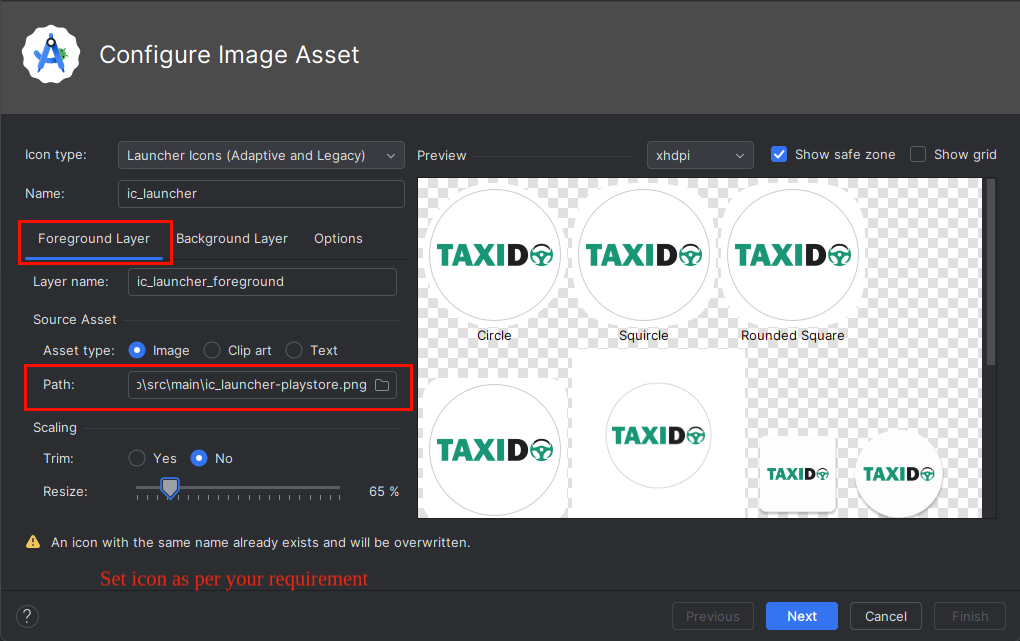
5. Choose your app icon image path in the Foreground Layer from the pop-up that appears.<br>

   <figure><img src="https://74030740-files.gitbook.io/~/files/v0/b/gitbook-x-prod.appspot.com/o/spaces%2F6o4UzjBZtMQpeq4oeh8s%2Fuploads%2FEw8qHZ51PQy6UH62wu9T%2Fimage.png?alt=media&#x26;token=321e470b-12dd-4a9a-a01c-6945e28384bc" alt=""><figcaption></figcaption></figure>
6. Adjust the icon's size to suit your needs.<br>

   <figure><img src="https://74030740-files.gitbook.io/~/files/v0/b/gitbook-x-prod.appspot.com/o/spaces%2F6o4UzjBZtMQpeq4oeh8s%2Fuploads%2Fol0s8NCJ7Ff2TKt15gYQ%2Fimage.png?alt=media&#x26;token=7421fe2f-5a96-4b67-8d04-cd60c7d960dd" alt=""><figcaption></figcaption></figure>
7. Now click on Background Layer tab, and select background color as per your requirement.<br>

   <figure><img src="https://74030740-files.gitbook.io/~/files/v0/b/gitbook-x-prod.appspot.com/o/spaces%2F6o4UzjBZtMQpeq4oeh8s%2Fuploads%2Fm7wxDHIwGIk11dXe6zkV%2Fimage.png?alt=media&#x26;token=6cafaf7b-d092-45a5-9f2e-859c44f5a0fe" alt=""><figcaption></figcaption></figure>
8. Now select releasein Res directory and click on Finish button.<br>

   <figure><img src="https://74030740-files.gitbook.io/~/files/v0/b/gitbook-x-prod.appspot.com/o/spaces%2F6o4UzjBZtMQpeq4oeh8s%2Fuploads%2FxrkZGSS2Mcyta5q5PaPE%2Fimage.png?alt=media&#x26;token=44dd0b55-5620-4cdc-8f8c-23b86a8cad74" alt=""><figcaption></figcaption></figure>
9. After finish process, open your project and run it again.

## 2. IOS

1. Open Your Xcode Project.<br>
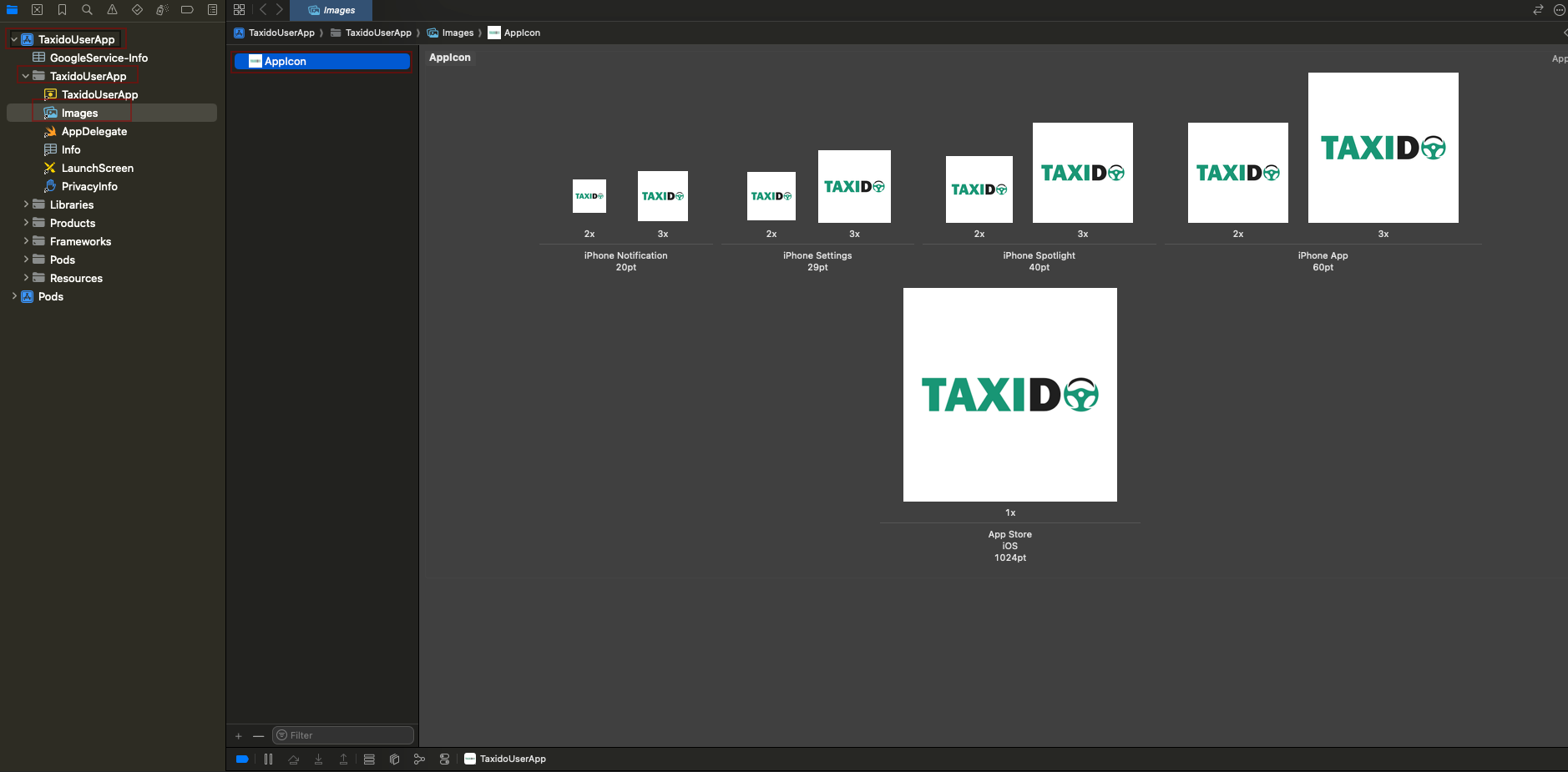
2. Open your project like this: TaxidoUser → Taxidouserapp → image → App icon.<br>

   <figure><img src="https://74030740-files.gitbook.io/~/files/v0/b/gitbook-x-prod.appspot.com/o/spaces%2F6o4UzjBZtMQpeq4oeh8s%2Fuploads%2FvHrJ5lkpqQM3xoEWcM4b%2Fimage.png?alt=media&#x26;token=4b23f767-d389-4e0b-90f6-6699d9ddcd3b" alt=""><figcaption></figcaption></figure>

3.Then, add your app icon in all sizes.