# Admin Common Error
### **Solving Image and Asset Loading Issues in Laravel on cPanel**
If images and assets are not loading properly in your Laravel application, ensure that the storage folder is properly linked, and the assets are built correctly. Below are the steps to check and fix the issue:
**Steps to Fix Image and Asset Loading Problems:**
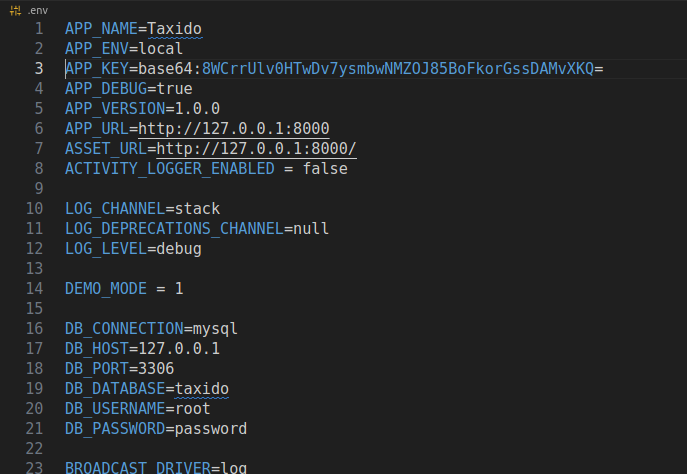
**1.Update the `.env` File:**
Open the `.env` file in your Laravel project and set your primary domain URL:
APP\_URL=
ASSET\_URL=
**2.Install Dependencies and Build Assets:**
Run the following commands in your terminal to install dependencies and compile assets:
```html
npm i
```
```html
npm run build
```
This will generate a new `build` folder in the `public` directory.
**3.Upload the Build Folder to the Server:**
After generating the `build` folder, upload or replace the existing one on your server inside the `public` directory.
**4.Download and Upload Missing Image Assets:**
If images are missing, download the `media.zip` file from:
```
https://laravel.pixelstrap.net/taxido/admin/assets/media.zip
```
Then, navigate to the `storage/app` folder and replace the existing `public` folder with the extracted contents of `media.zip`.
**5.Delete and Recreate Storage Link:**
Run the following command to properly link the storage folder:
```html
npm i
```
**6.Verify Image and Asset Loading:**
Refresh your application and check if the images and assets are now loading correctly.
Following these steps should resolve any image and asset loading issues in your Laravel project hosted on cPanel.